Realtime Fashion Design
Sketch a garment over a mannequin or your own background and see it become a realistic visual in seconds. Edit the background with AI, try another line, and keep every version in a creation tree.Start designing
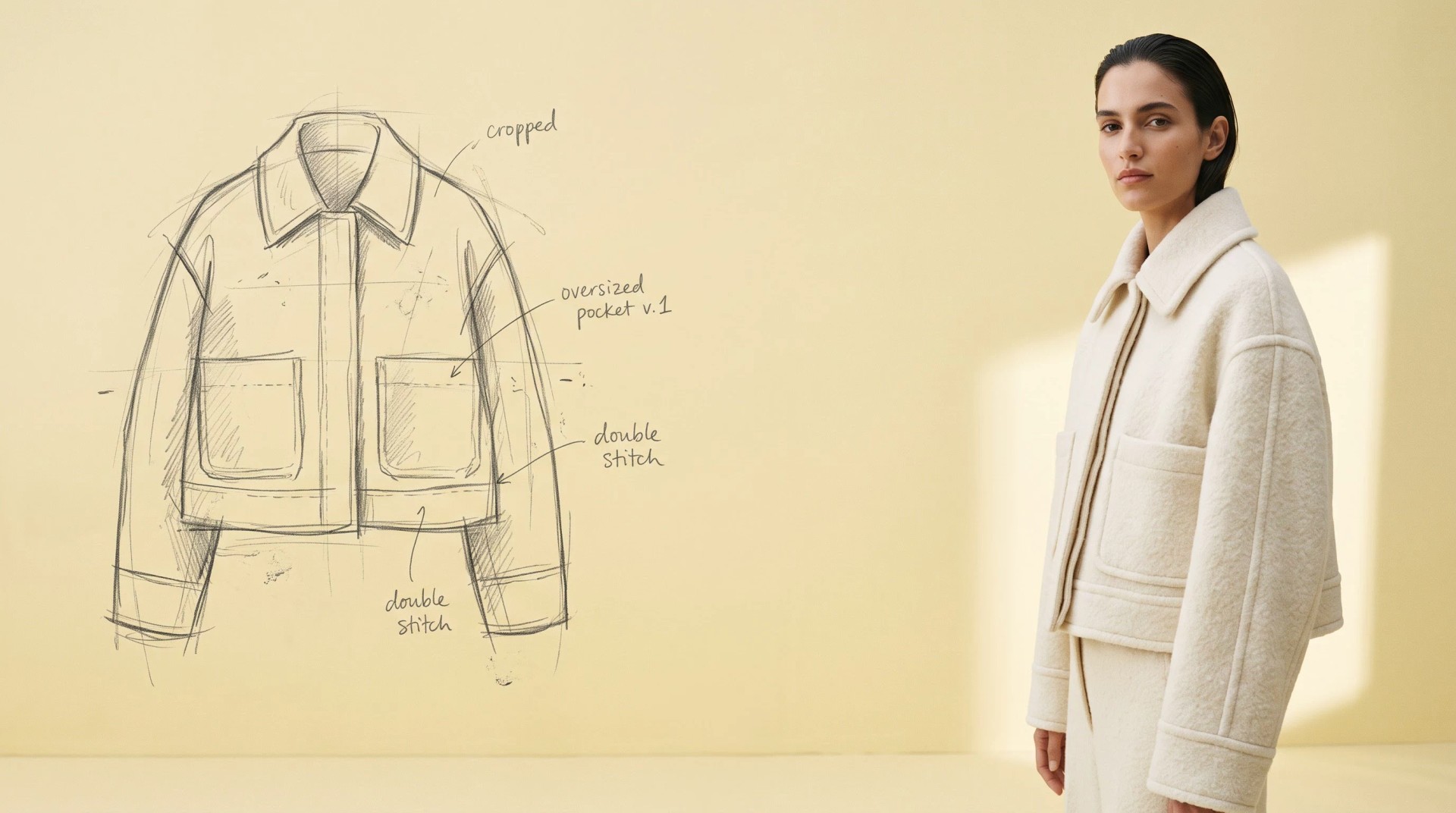
From a sketch to a visual, step by step
A sketch is a promise: the proportions are there, the details are there, but the fabric, the fall and the light are still in your head. Realtime Design closes that gap while you draw. The board and the visual sit side by side, so every change of line can be seen worn, then kept or dropped.
- Step 1
Draw
Pick a background, a woman or a man in four poses or a garment base, and sketch the garment over it with the pen, at the proportions you need. Lines, dashes, a marker, any colour.
- Step 2
Edit the background
Need a seated pose or a longer silhouette under your lines? Describe it and the background is edited with AI. Your drawing stays as it is, on top.
- Step 3
See it real
Press Generate, in Standard, Pro or Ultra: in about twenty seconds the sketch is a realistic visual. Every version joins your creation tree.
Draw on a real base
Nobody starts a garment on a blank page. Under the drawing sits a background, in a light pencil line, that gives the body, the pose and the proportions. On a body, the visual shows a model wearing your garment in that pose, from the front, walking, in profile or from the back. On a garment base, it shows the piece alone on an invisible mannequin, the way a product page would. Or import a picture of your own: a silhouette from your archive, a flat from last season, a photo of a sample.
Women
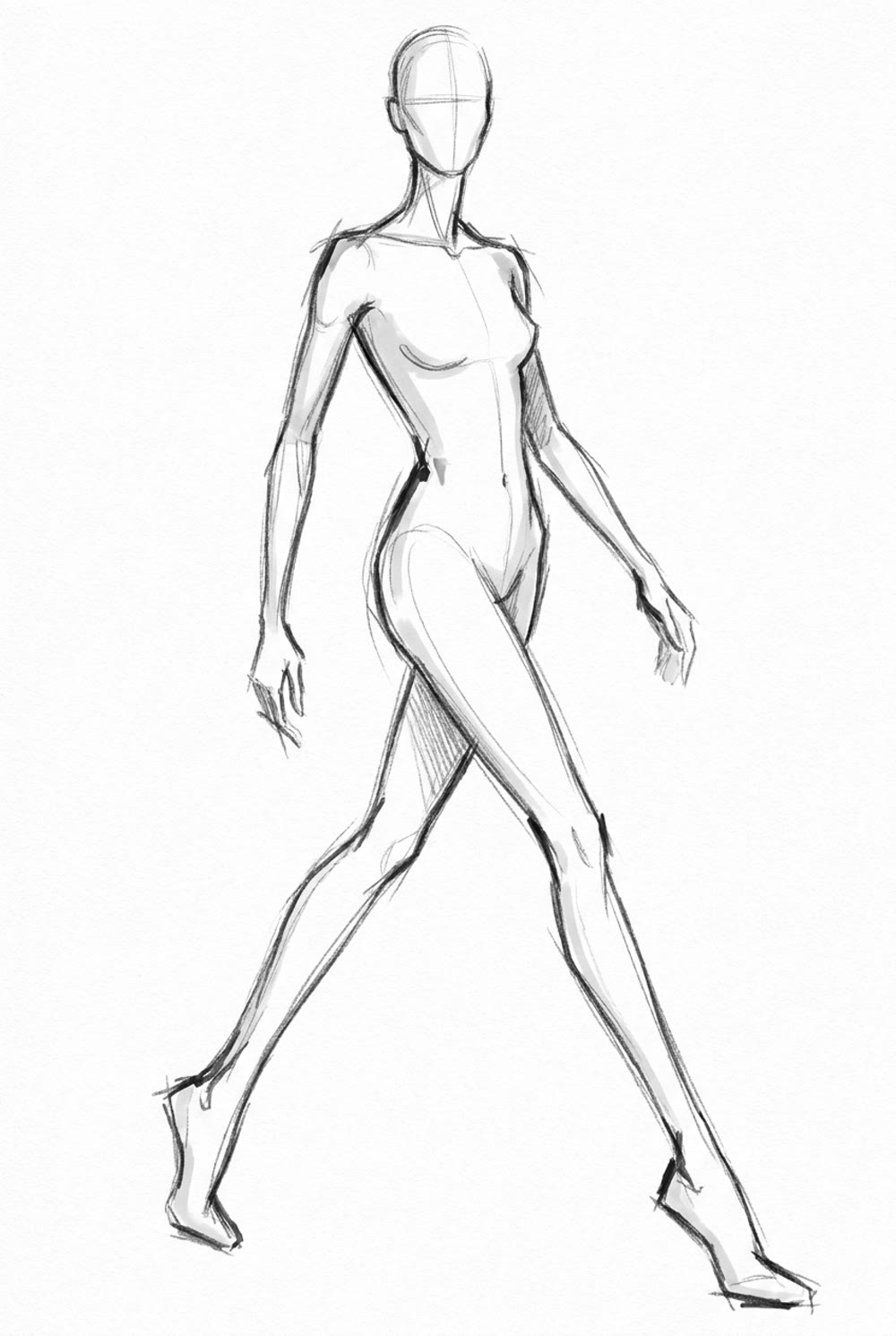
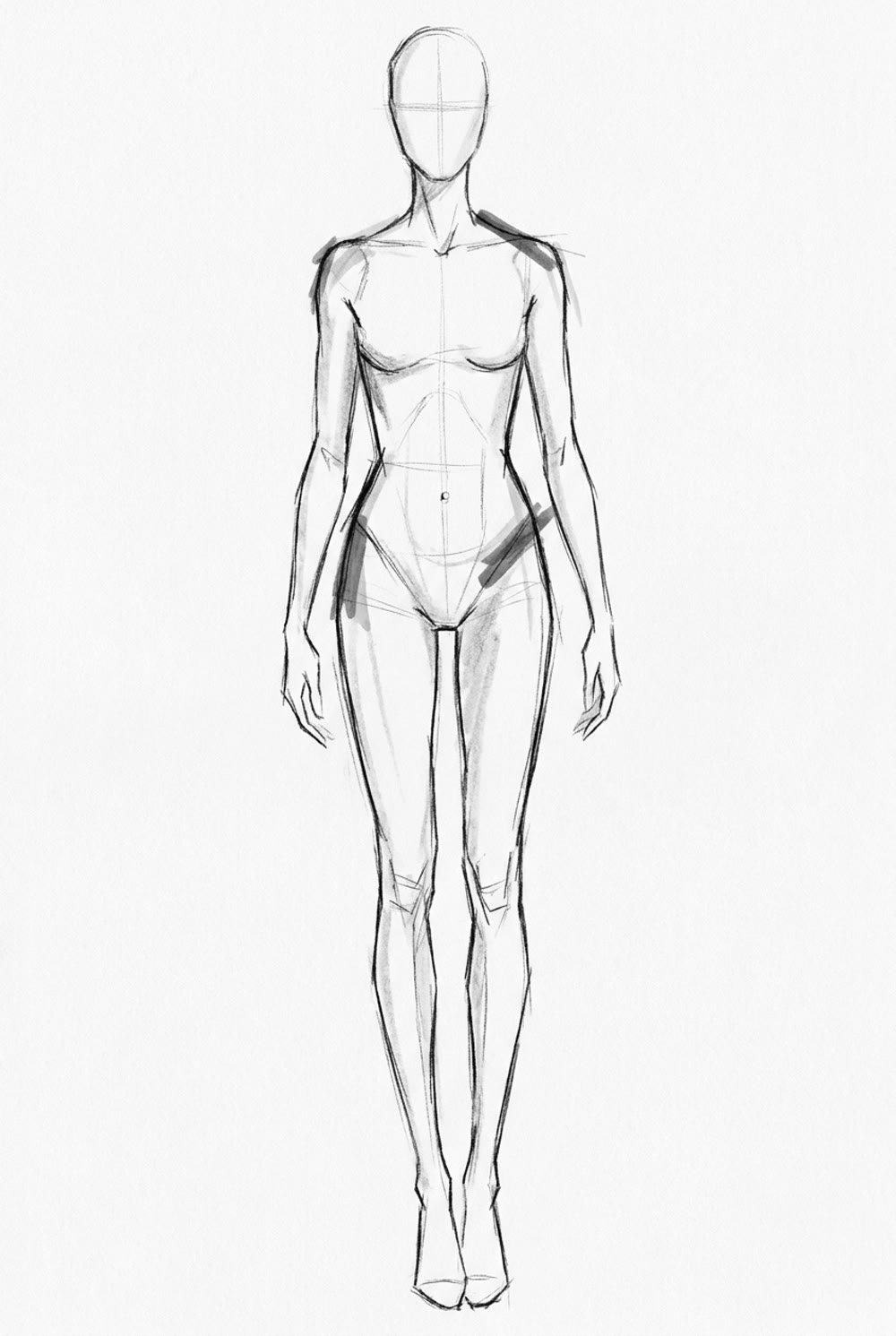
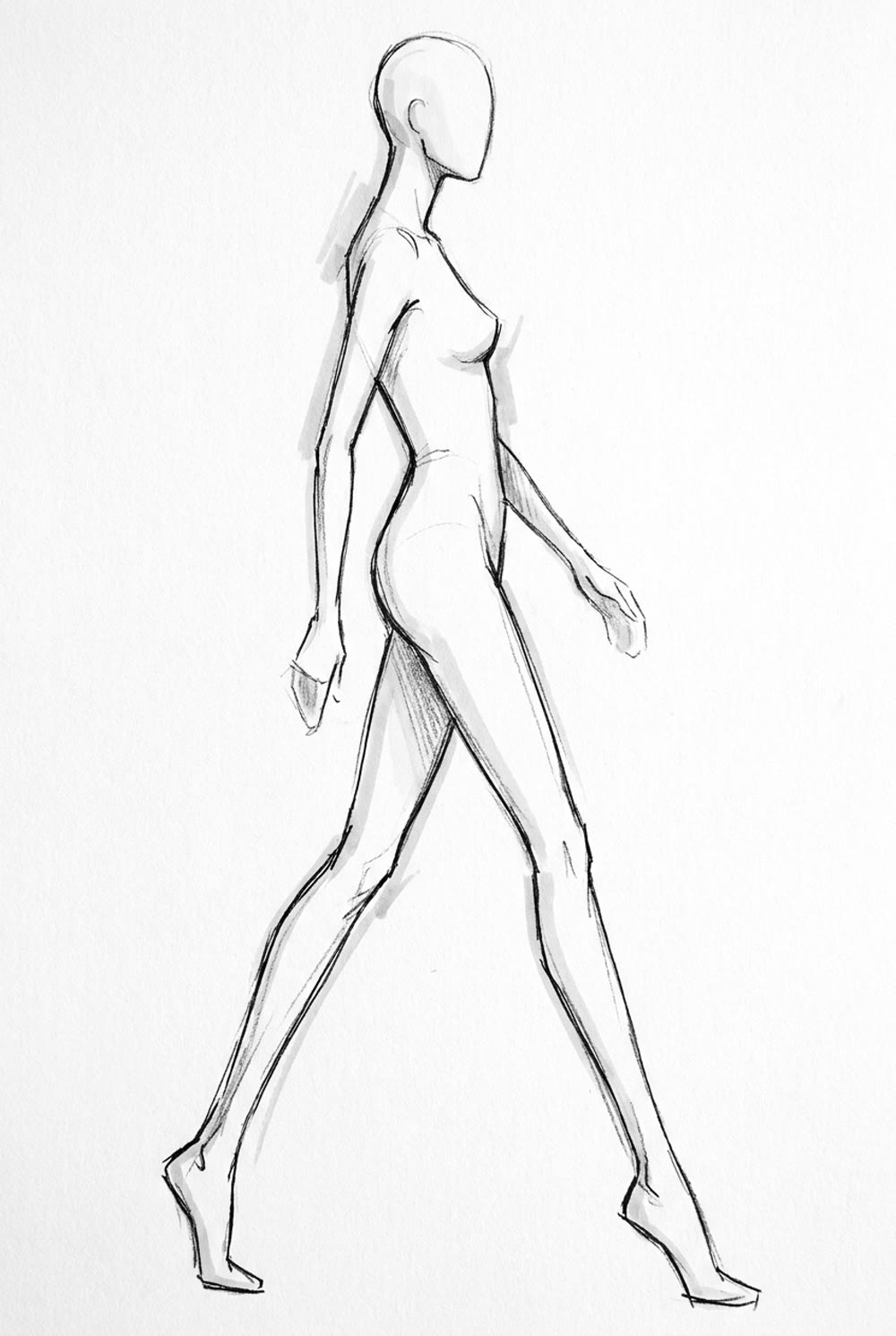
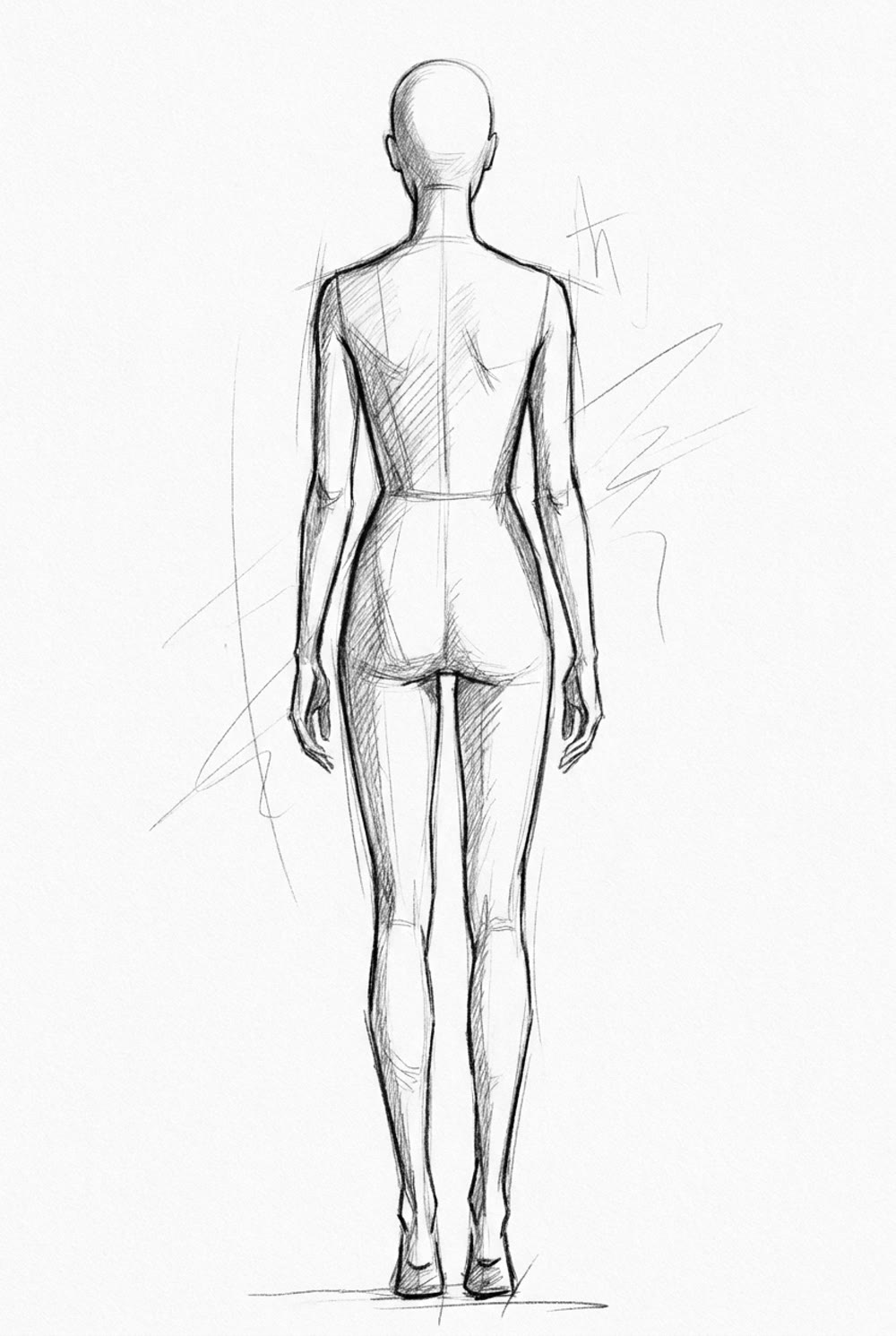
Woman, walking · Woman, front · Woman, profile · Woman, back
Men
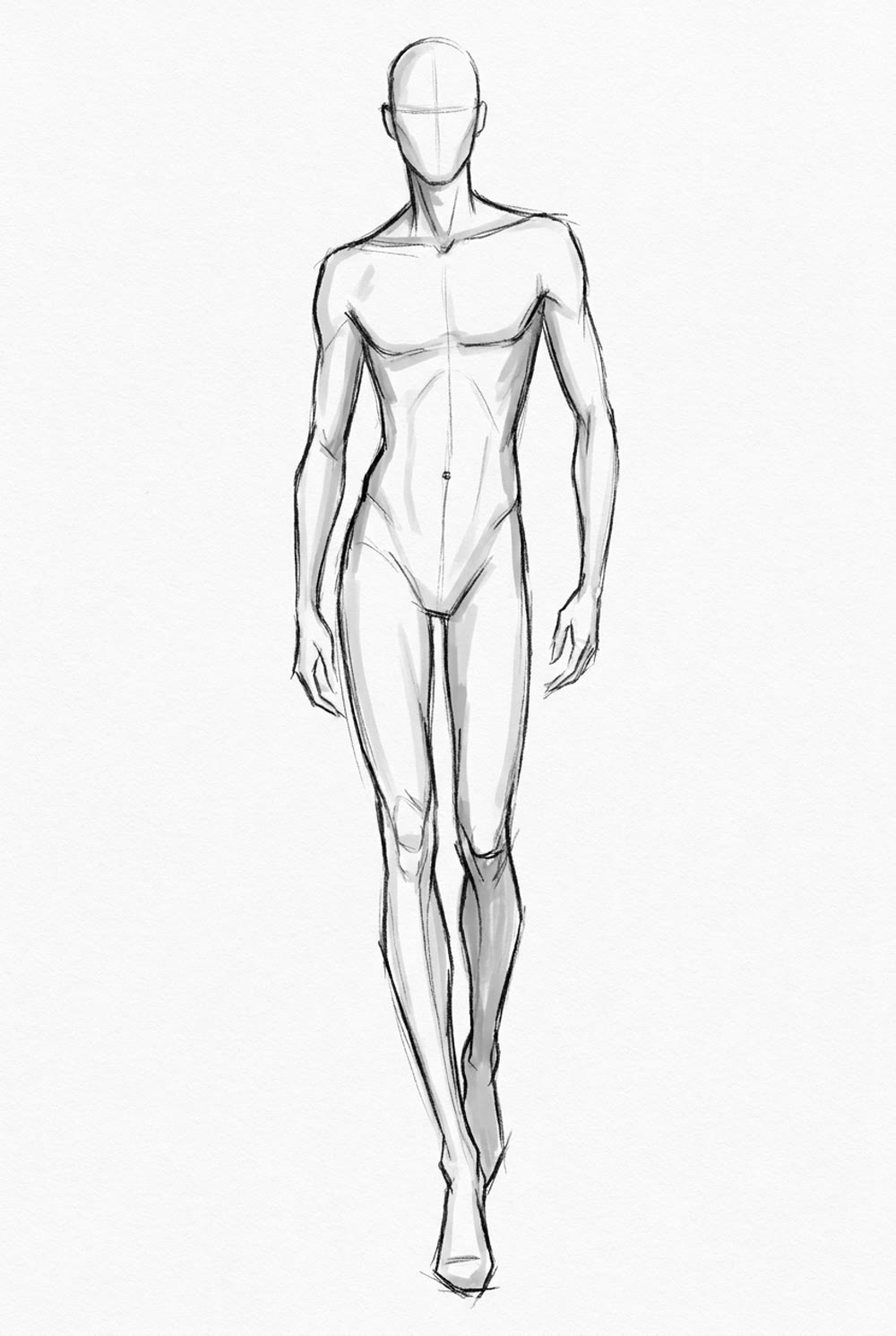
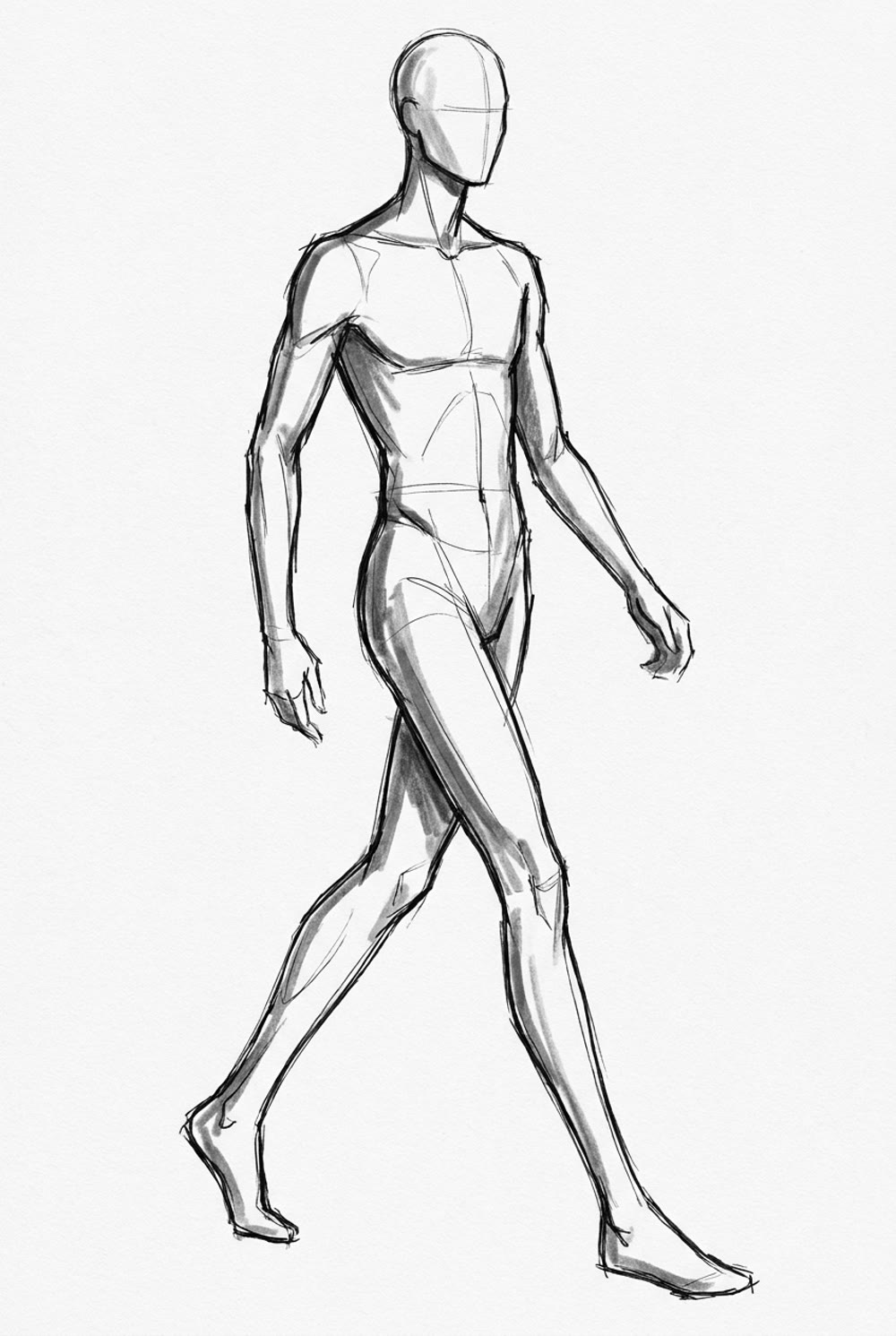
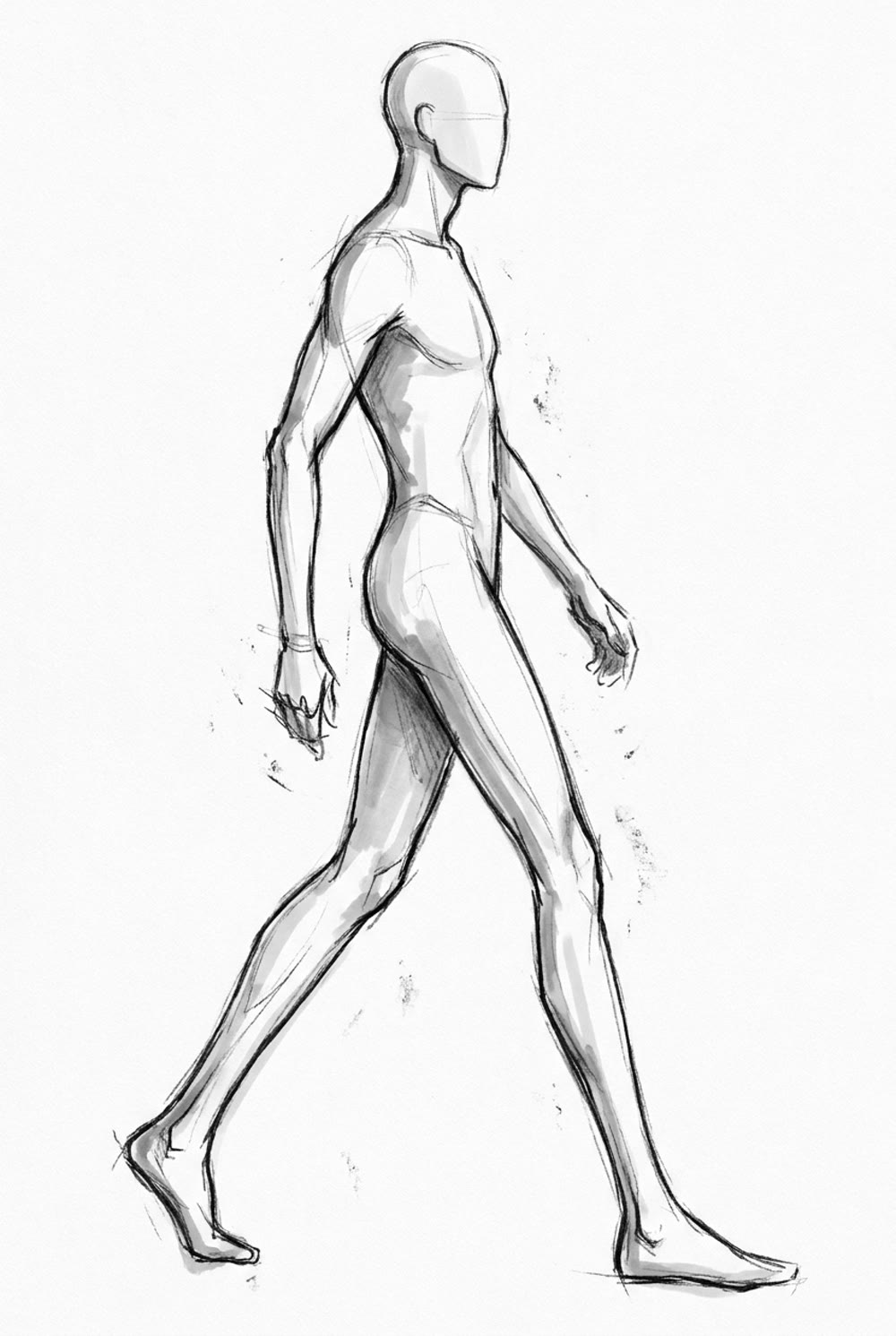
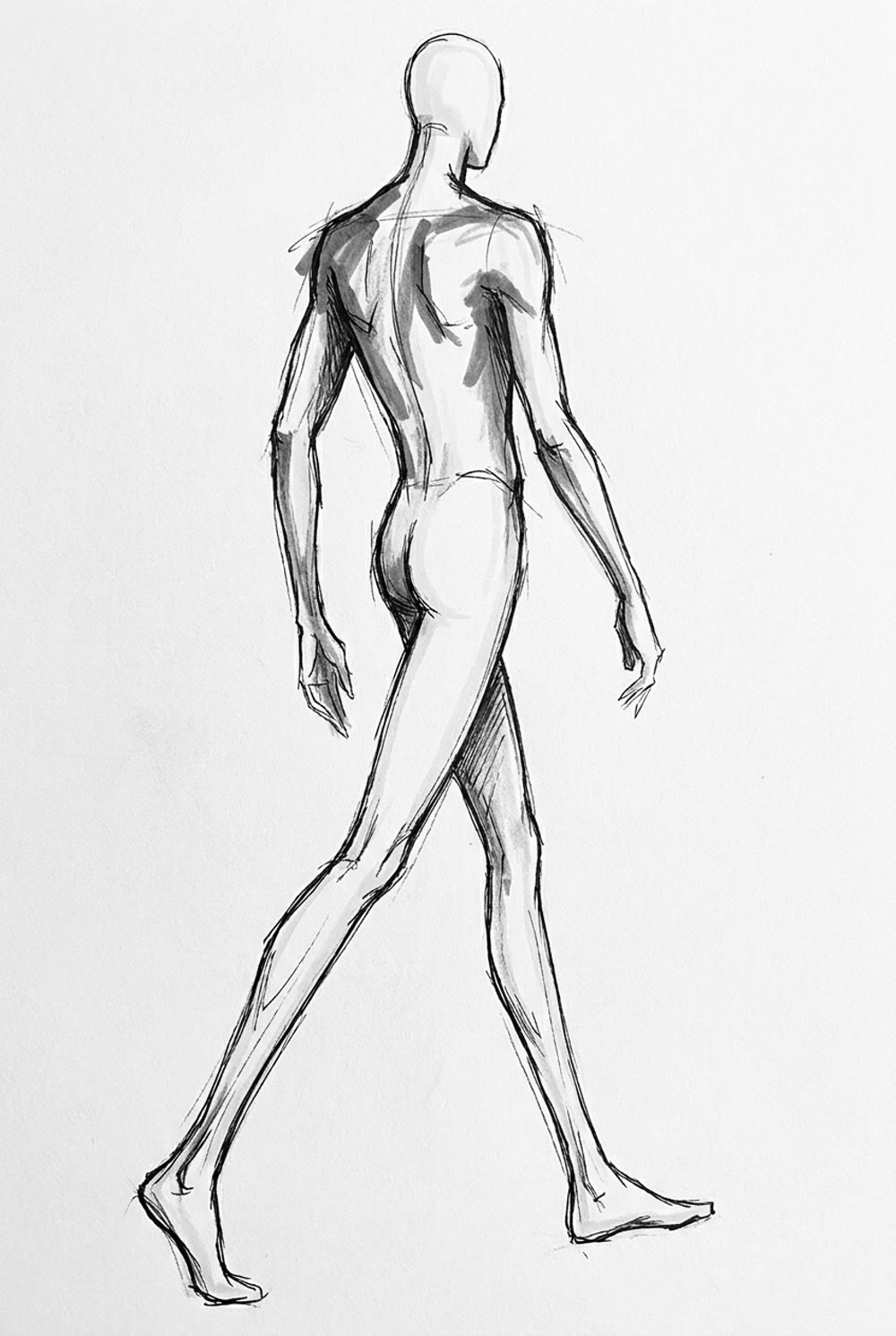
Man, front · Man, walking · Man, profile · Man, back
Garments
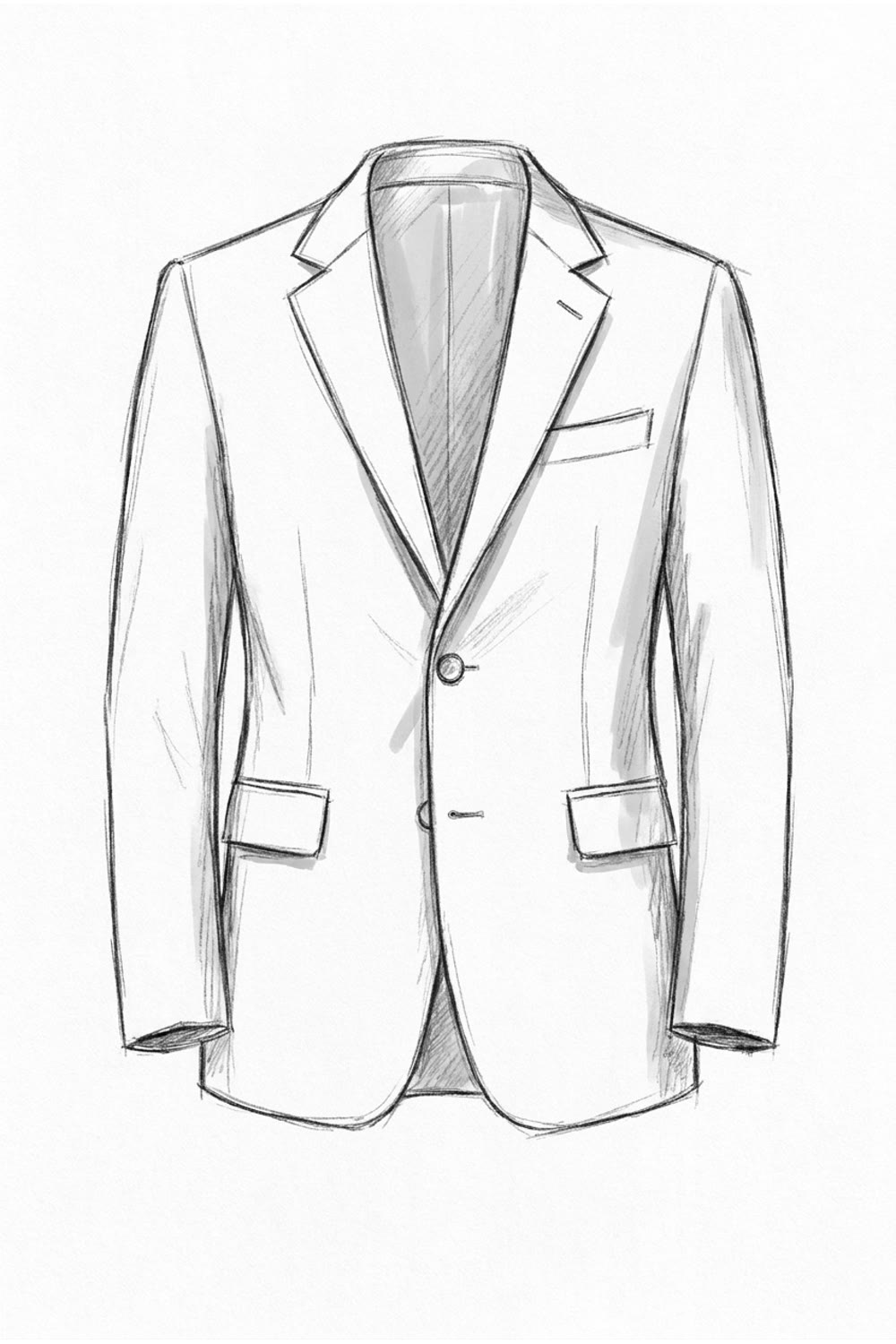
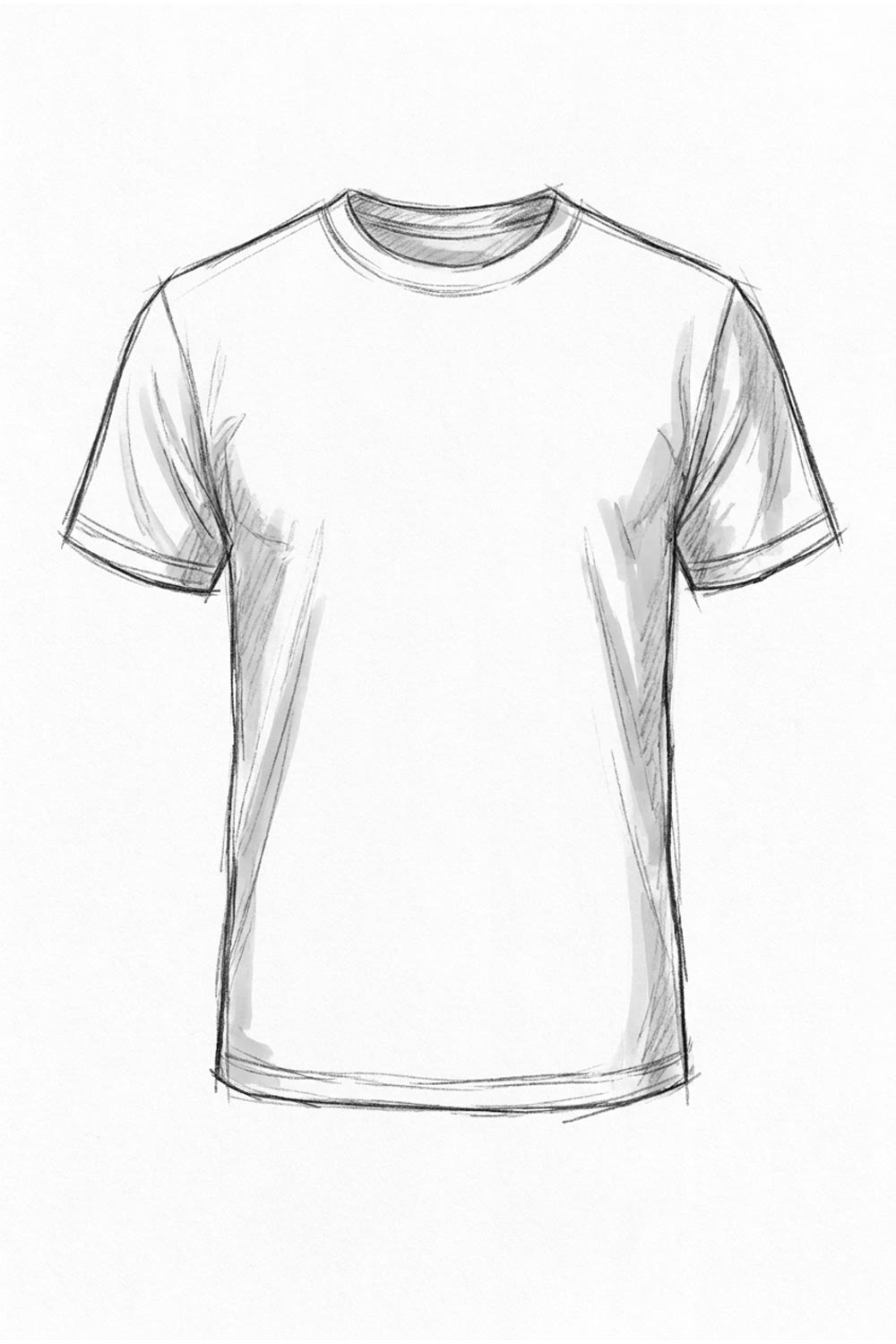
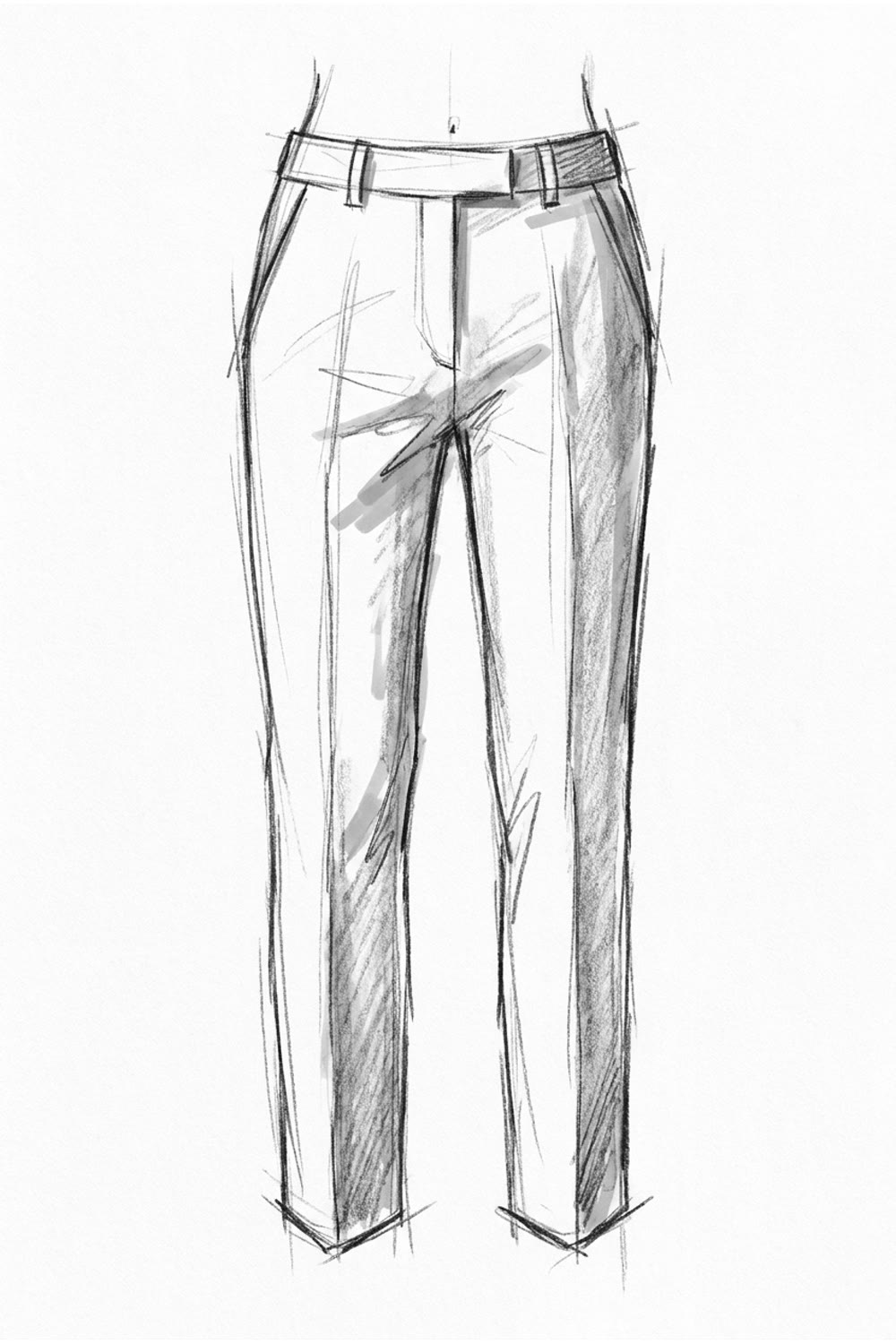
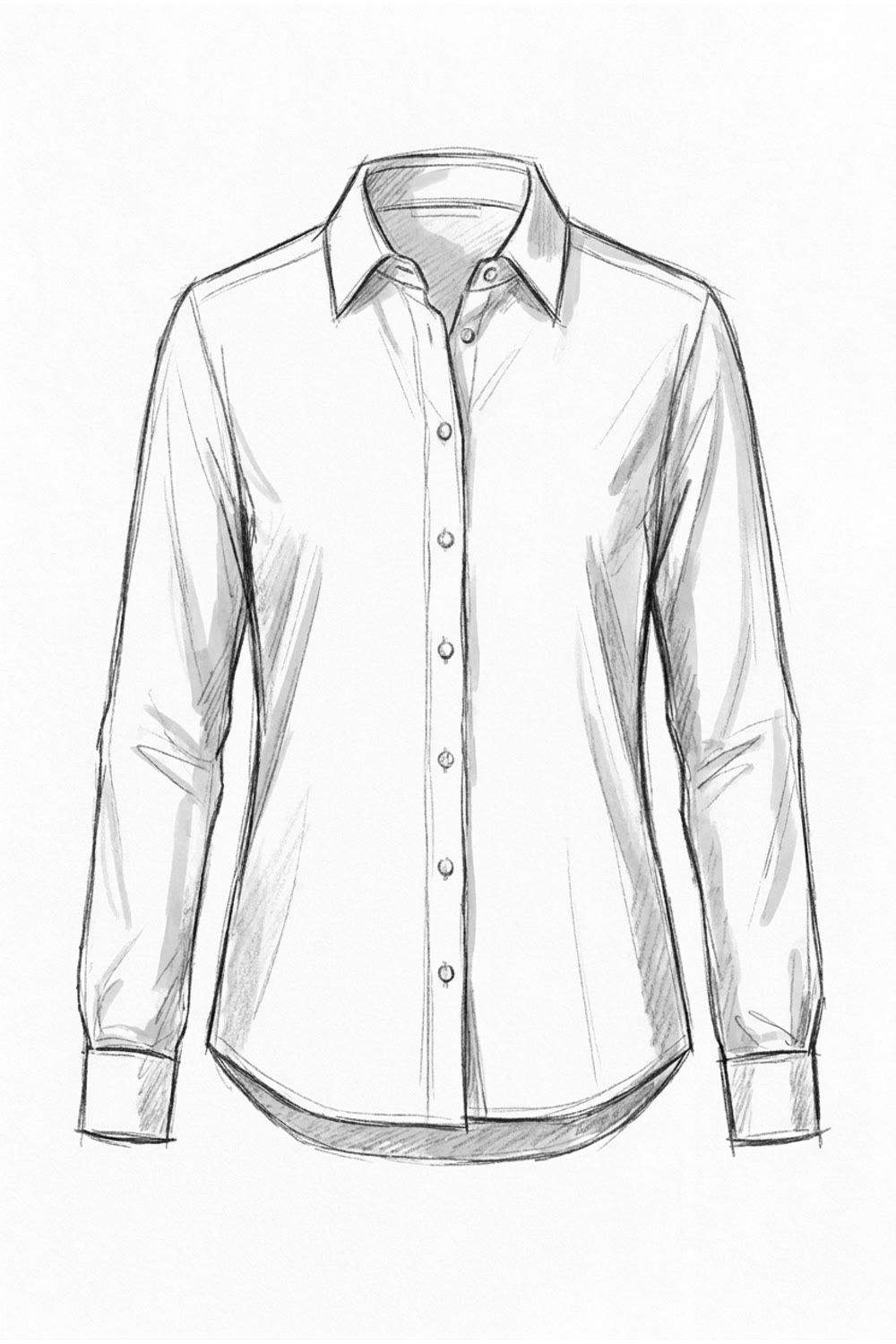
Jacket · T-shirt · Trousers · Shirt · Dress · Skirt · Coat · Hoodie · Sweater · Shorts
Edit the background with AI
Sometimes the base is the thing that must change: the model should be sitting, the jacket should be cropped, the view should be from the back. Write it in a sentence and a new background is made from the current one, while your drawing stays exactly where it is, on top.
The new background joins My backgrounds, ready for your next design, and becomes a step of the creation tree. Go back one step and the previous background returns under the drawing.
- “The model sitting on a stool”
- “Same body, seen from the back”
- “A longer coat, below the knee”
- “Wider trousers, cropped at the ankle”
Every version kept, in a creation tree
Design is a series of forks. A wider collar or a narrower one, a pocket or none, a waistband or a drawstring. Each time you generate, the drawing, its background and its visual are kept as a step. Go back to any step and the board returns to that drawing; draw from there and a new branch opens, while the other one stays where you left it.
The strip beside the visual shows the branch you are on; the whole tree shows every direction you explored. When you meet a buyer or a factory, the reasoning behind the final piece is there, step by step.
Branches, not overwrites
Try an idea without losing the one before. Each branch keeps its own drawings and visuals.
A board per design
Every design has its own board, named and filed in your projects, where your team can open it like the rest of the studio.
Ready for the next step
Export any step to the Studio or straight into a tech pack, with the sketch beside the visual.
A drawing board made for a pen
The board works with a mouse, and it is at its best with a stylus on an iPad: draw with the pen, move and zoom with your fingers, turn the grid on to keep the proportions straight. Everything a fashion sketch needs, and nothing in the way.
Draw
A pen made for a stylus, with solid lines, dashed lines for stitching and a translucent marker to colour a surface. Any colour, any width.
Eraser
Take away one line without touching the others, then draw it again.
Select
Circle a part of the drawing to move it or scale it: a pocket a little lower, a collar a little wider.
Undo and redo
Every gesture can be taken back, even Clear all.
Backgrounds
Eighteen bases in the same pencil line, or a picture of your own. Show or hide the background in one click.
Edit background with AI
Describe the change, and a new background is made under your drawing and added to My backgrounds.
For designers who think with a pencil
For the designer of a fashion brand who wants to see a line before ordering a sample. For a small label building a collection without a design studio. For a student who wants a portfolio that shows the garments, not only the sketches. And for a team that has to agree on a direction: a visual settles in a minute what a sketch leaves open for a week.
A sketch on paper and a sketch in Realtime Design
| On paper | Realtime Design | |
|---|---|---|
| Seeing the idea | A flat sketch, imagined in fabric | A realistic visual of the same sketch, in seconds |
| Trying a change | Redraw, or wait for the next sample | Change a line and generate again |
| Keeping versions | Pages of a sketchbook, files named v2, v3, final | A creation tree: every step, every branch, with its visual |
| Sharing the design | A scan sent by email | Exported to the Studio or straight into a tech pack |
Learn
Turn a fashion sketch into a design
Upload a finished sketch and get the garment as a photo, on a model or alone.
ReadFrom a photo to a flat sketch
The other way round: a garment photo turned into a clean technical flat.
ReadApply a fabric to a sketch
Put a print or a textile on the garment you drew, before anything is cut.
ReadFashion tech pack
Measurements, materials and construction notes around the visual, ready for the factory.
ReadFAQ
What is realtime fashion design?+
A way to design a garment by drawing it and seeing it real as you go. You sketch over a background (a mannequin, a garment base or a picture of your own), then press Generate: in about twenty seconds the sketch becomes a realistic visual of the garment. Change a line, generate again, and compare the two versions side by side.
How do I turn a fashion sketch into a realistic image?+
Open Realtime Design, pick a background from Backgrounds (a woman or a man in four poses, or one of ten garment bases), and draw the garment over it with the pen. Press Generate and choose Standard, Pro or Ultra. On a body background, the visual shows a model wearing your garment in that pose; on a garment base, the garment alone on an invisible mannequin, like a product photo.
Do I need to know how to draw?+
No. Start from a mannequin or a garment base and only adjust the lines: shorten a sleeve, widen a collar, add a pocket. You can also import a picture of your own as the background. And when the base itself should change, describe it and the background is edited with AI, for example a seated pose or a cropped jacket, while your drawing stays as it is on top.
What does Edit background with AI do?+
It changes the picture under your drawing, never the drawing itself. Write what should change, for example “the model sitting” or “a longer coat”, and a new background is made from the current one. It is added to My backgrounds and kept as a step of your creation tree, so you can always go back to the previous one.
How much does it cost?+
Drawing is free. Each visual uses the Studio's own generation, in Standard, Pro or Ultra, at its usual prices; the price of each quality shows before you generate. Editing the background with AI is a Standard image from the Studio, at its usual price. New accounts start with free credits.
What is the creation tree?+
Each time you generate, the drawing, its background and its visual are kept as a step. Go back to any step and the board returns to that drawing; draw from there and a new branch opens, while the other branch stays where you left it. The whole tree shows every direction you explored, so nothing is lost when you try an idea.
Can I use the result in a tech pack?+
Yes. Export a step to a tech pack: the visual and the sketch go onto its drawing area, ready for measurements and construction notes. You can also export it to the Studio, where the visual becomes a creation with the sketch beside it, ready for a model, a video, a lookbook or your store.
Does it work on an iPad?+
Yes. The board is made for a pen: draw with it, move and zoom with your fingers. On a phone or a tablet, the list of your designs and the visual slide in from the sides, so the board keeps the whole screen.
Can I use the images commercially?+
Yes. What you create on The New Black belongs to you, and you can use it as you wish within the law that applies to you: in a presentation to a buyer, on your store, in your campaigns.