AI Clothing Flat Lay Generator
The garment generator creates clothing images with no model in them: describe a piece and get it back as a flat lay or a ghost mannequin visual, front view and back view included if you want both. It is the tool for showing the garment itself, clean and product ready, the way an e-commerce catalog or a line sheet presents it.
Updated 3 October 2026
- 1Turn the model off
- 3Build the piece your way
How it works
Turn the model off
In the studio, go to clothes and set the with human model option to NO, then choose the gender of the garment. From that point everything you generate is the piece alone.
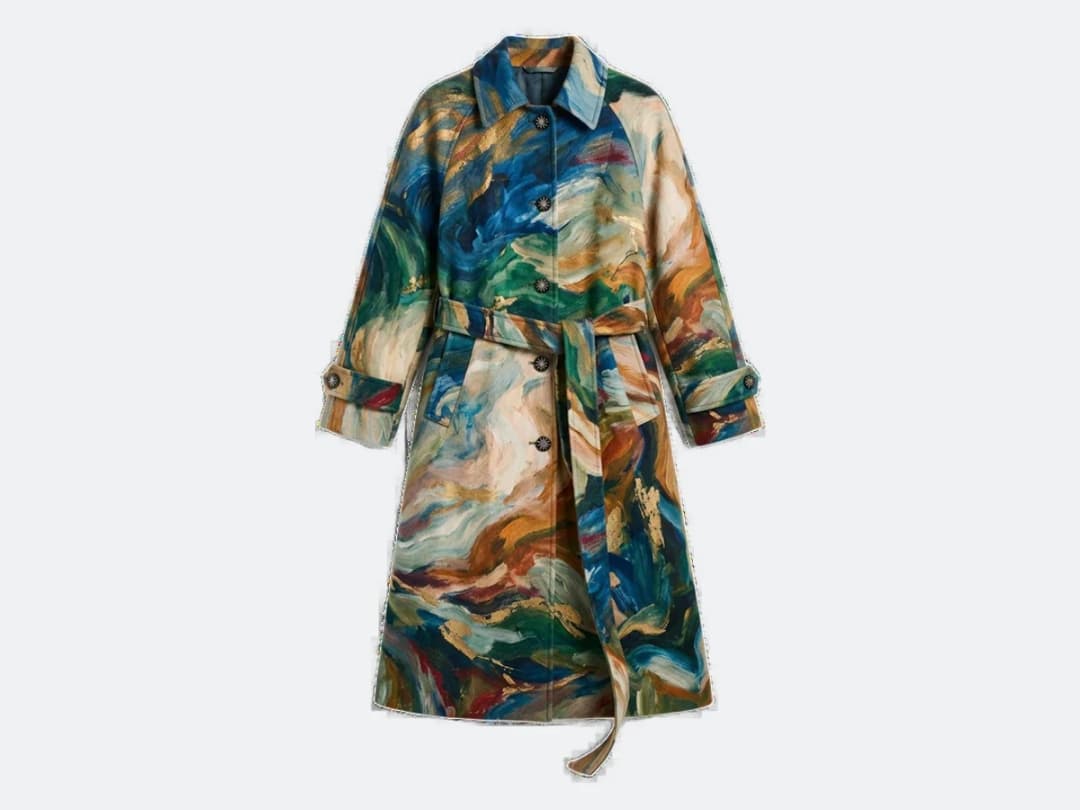
{{image:https://npqskpnjrrqtpqdlsopw.supabase.co/storage/v1/object/public/assets/features/ai-clothing-piece-flat-lay-generator/s1-c37c5f50.webp|A model wearing the painted coat, the photograph the flat lay is taken from}} ### 2. Describe your clothing piece
Write the garment: a top, a bottom, a dress, whatever the line needs. If you are out of ideas, the surprise me button generates starting points for you.
Build the piece your way
Choose between the ghost mannequin presentation, where the garment holds its worn shape, and the flat lay, and generate front and back views of the same design. Any garment you can describe can exist this way.
Modelless, not the same tool twice
This generator creates the garment from text. Its sibling, the ghost mannequin from an image tool, starts from a photo you already have and removes the model from it. One invents the piece, the other cleans up its photography. When a generated piece is ready to be worn, virtual try on puts it on a model, all inside the design studio.
Frequently asked questions
What is the difference between flat lay and ghost mannequin here?+
Both are modelless presentations you can choose between. The flat lay shows the garment laid out; the ghost mannequin shows it holding a worn, three dimensional shape with no visible body.
Can I get the back of the garment too?+
Yes. You can choose to create the front view and the back view of the piece, which is what a product page or a tech pack needs.
What input does it need?+
Text only: the option settings (no human model, gender, presentation) and your description of the garment. No photo, no sketch, and the surprise me button fills in when the description will not come.
Can I sell products using these images?+
Generated flat lays and ghost mannequin visuals can go straight into shops, catalogs, and line sheets.
Can I run Image to Flat Lay on many photos at once?+
Yes, with bulk generation on the Pro, Business and Enterprise plans: upload up to 30 photos, choose Image to Flat Lay, set the flat lay settings once for the whole batch, and every photo comes back processed. Each photo costs the same credits as a single run.
Try it yourself
Everything on this page was made in the studio. Your first designs are minutes away.
Open the studioRelated features
- AI Fashion Reels: Trending Outfit Transition VideosMake trending AI fashion reels from one photo: outfit transitions as people pass, as your model walks, at a finger snap, after a jump, and more. 10-second 9:16 videos for Reels, TikTok and Shorts.
- AI Fashion Video from Reference ImagesPut your model, your garment and a place into one video: add up to three reference pictures, describe the scene, and get a 5 to 15 second fashion clip in 9:16, 1:1 or 16:9.
- Fashion Reel Templates & AI Motion DesignEighteen Motion Design templates for fashion reels: drop your photos or clips, edit the words, render a 10-second video in 9:16, 4:5, 1:1 or 16:9. One credit, every plan.
- Edit a Video with AIChange a video with a sentence, in your own words: the light, the setting, the mood, a garment. The instruction goes to the model as written; the clip keeps its length and its sound.
- AI Background Remover for Fashion and Product PhotosCut the subject out of any fashion or product photo and keep it on a transparent background: a model, a garment, a bag, a shoe, in one click, ready for your shop or your layouts.
- AI Image Generator for Fashion: Create or Edit Any ImageWrite what you want and get the image, or upload up to three references and describe the change: the free-prompt tool that creates or edits any fashion visual, in any format.
- Change the Background of a Video with AIPut the model of a video somewhere else, a street, a studio, a beach, with a sentence. The person, the outfit and the movement stay; the setting, the light and the shadows change.
- AI Clothes Changer for Video: Edit the OutfitChange the clothing in a video with one sentence: a new colour, print or garment. The person, the movement and the setting stay as filmed. 3.3 credits per second.
- Model 360: a full turn from a front and a back photoTwo photos of your model, front and back, become a full-turn video: the model turns on the spot, or the camera circles around them. Every detail of the outfit kept, from every side.
- Reframe a Video to Any Format with AITurn a landscape clip into a vertical one, or a vertical into a square, without cropping: the subject is recentred and the missing edges are generated. One clip, every channel.