Upscale a Video to HD
The AI video upscaler raises a fashion clip to high definition without repainting it. It works frame by frame, lifting resolution and sharpening detail while the movement, the colours and the fall of the fabric stay exactly as they were. A clip generated in the studio, or one you shot yourself, comes back sharp enough for a product page, a campaign or a screen the size of a wall.
Updated 2 October 2026
- 1Start from the clip you want to keep
- 2Ask for the HD version
- 3Publish it where the pixels are counted
How it works
Start from the clip you want to keep
Any video in your studio, one you generated from a photograph, or one you uploaded. The upscaler works on what is there, so a clip that is well framed and well lit gives it the most to work with.
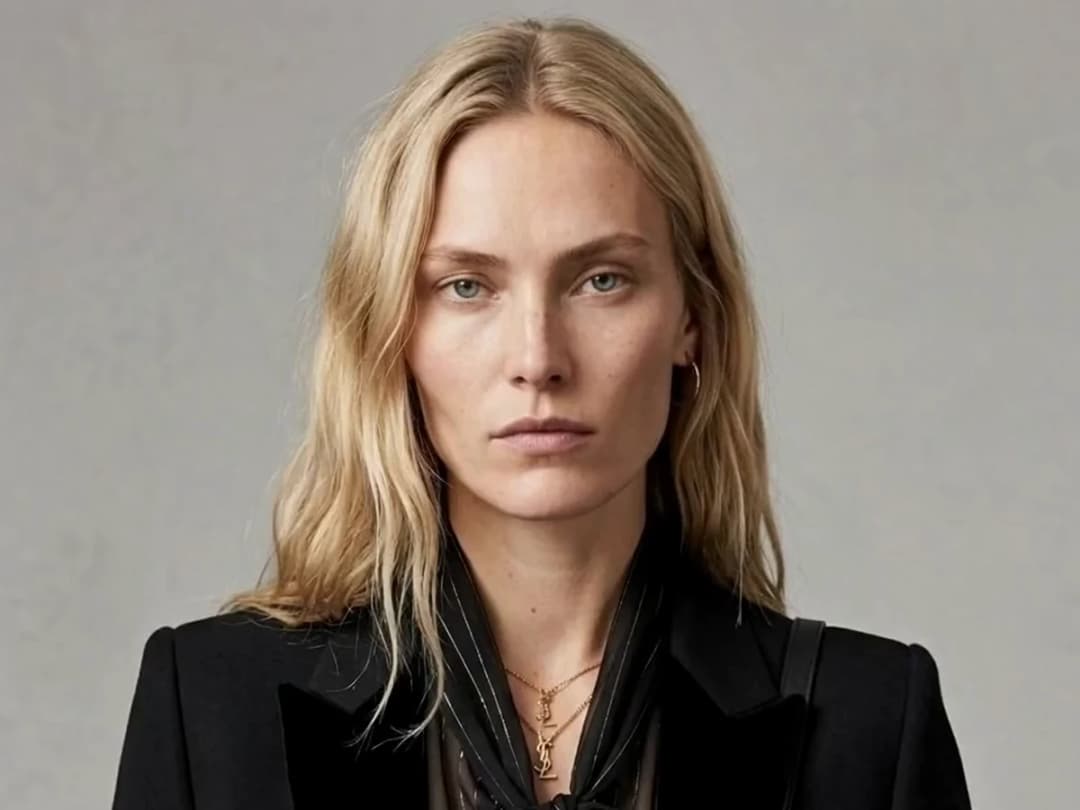
Ask for the HD version
One press. The pass runs frame by frame, raising resolution and recovering detail without flattening texture or shifting colour: the same clip, at a size that holds up.
Publish it where the pixels are counted
A product page, a paid campaign, a lookbook loop, a screen in a store. HD is the last step before publishing, once the movement itself is settled.
Sharper is not the same as different
An upscaler that invents is a generator wearing the wrong name. This one keeps the frame it was given: the same garment, the same fall, the same face. What changes is how much of it survives the trip to a large screen: the weave of a knit, the edge of a seam, the light on a metal buckle.
That is also why it belongs at the END of a chain rather than the start. Animate first, settle the movement, then run the HD pass on the version you have chosen. Enhancing early only means enhancing a clip you are about to replace.
Try it on your own videos
Every video in the studio carries an HD button, one press away. Open the studio and enhance your first clip. To make the video in the first place, start from image to video; to do the same on a still, use the HD image upscaler. The rest is in the features catalog.
Frequently asked questions
What does the video upscaler preserve?+
The movement, the colours and the texture. The pass raises resolution and recovers detail frame by frame; it does not re-generate the scene, so the clip that comes back is the clip you sent, at a size that survives a large screen.
Which videos can I enhance?+
Any video in your studio: one generated from a photograph, one animated from a sketch, or one you uploaded yourself. A well framed, well lit source gives the best result, as it does with any enhancement.
When should I run the HD pass?+
Last. Settle the movement first, then enhance the version you have chosen. Running it early means enhancing a clip you are about to replace, and paying for it twice.
Where does the HD video go?+
It lands in your studio grid beside the original, filed in the same project, and it can be published to Shopify, Instagram, TikTok or YouTube from the same window. The studio runs in the browser, new accounts open with free credits.
Try it yourself
Everything on this page was made in the studio. Your first designs are minutes away.
Open the studioRelated features
- AI Fashion Reels: Trending Outfit Transition VideosMake trending AI fashion reels from one photo: outfit transitions as people pass, as your model walks, at a finger snap, after a jump, and more. 10-second 9:16 videos for Reels, TikTok and Shorts.
- AI Fashion Video from Reference ImagesPut your model, your garment and a place into one video: add up to three reference pictures, describe the scene, and get a 5 to 15 second fashion clip in 9:16, 1:1 or 16:9.
- Fashion Reel Templates & AI Motion DesignEighteen Motion Design templates for fashion reels: drop your photos or clips, edit the words, render a 10-second video in 9:16, 4:5, 1:1 or 16:9. One credit, every plan.
- Edit a Video with AIChange a video with a sentence, in your own words: the light, the setting, the mood, a garment. The instruction goes to the model as written; the clip keeps its length and its sound.
- Change the Background of a Video with AIPut the model of a video somewhere else, a street, a studio, a beach, with a sentence. The person, the outfit and the movement stay; the setting, the light and the shadows change.
- Edit the Outfit in a Video with AIChange the clothing in a video with a sentence: a new colour, another print, a different garment. The person, the movement and the setting stay as filmed.
- Model 360: a full turn from a front and a back photoTwo photos of your model, front and back, become a full-turn video: the model turns on the spot, or the camera circles around them. Every detail of the outfit kept, from every side.
- Reframe a Video to Any Format with AITurn a landscape clip into a vertical one, or a vertical into a square, without cropping: the subject is recentred and the missing edges are generated. One clip, every channel.
- Remove the Background of a Video with AICut a model or a product out of any video and keep it on a transparent, white, black or green background, no green screen. The clip keeps its length and its shape.
- Swap the Model in a Video with AIAnother person in the same video: give a photo of the new model, and the outfit, the movement and the setting stay exactly as filmed. One shoot, several faces.