AI Fashion Ad Generator
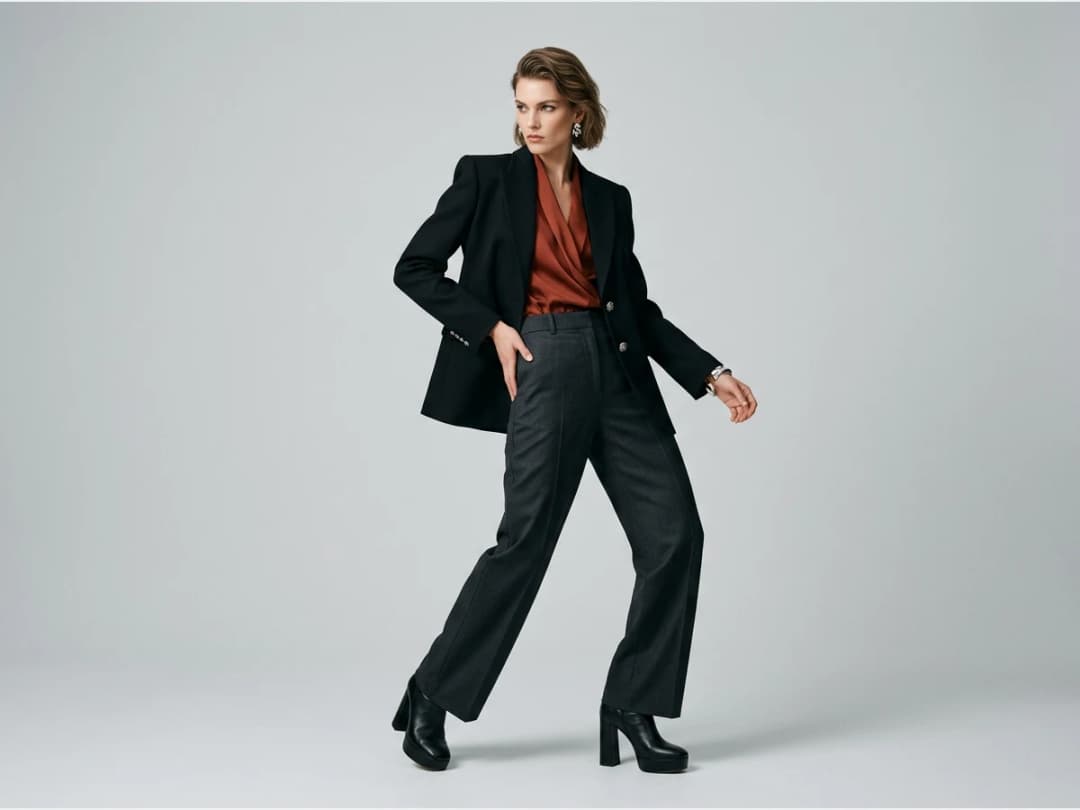
Ad Creative makes an editorial fashion campaign photo from your own product: upload the product photo, describe the scene, and your piece comes back worn by a model, or by your own model from a photo, in a picture composed like a campaign. There is no text on the image: the visual is clean, ready for your own headline in the ad manager, on a banner or in an email. It exists for brands that need campaign visuals long before a campaign budget exists, and for the paid-social teams that need fresh variants every week.
Updated 10 October 2026
- 1Upload your product
- 2Choose who wears it
- 3Describe the scene
- 4Choose the format and generate
How it works
Upload your product
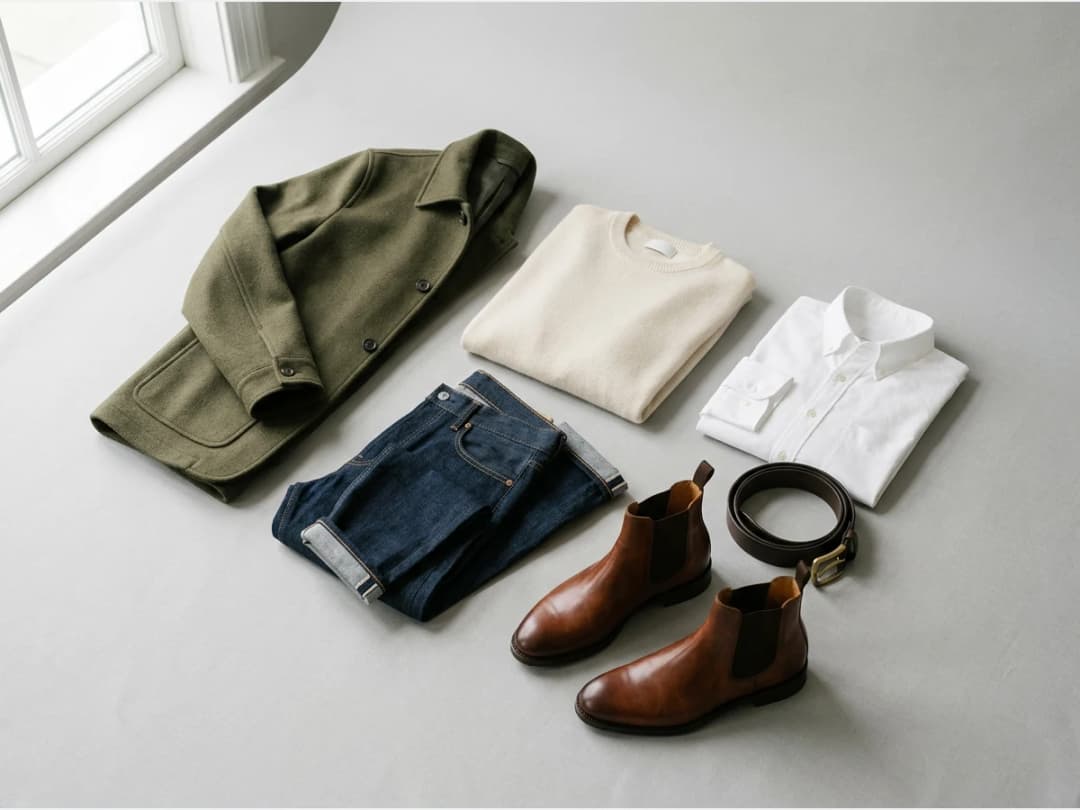
The product is what the campaign is built around, so it is the one thing you give as a picture: a packshot, a flat lay, a ghost mannequin. What appears in the photo is your product, not a generated look-alike.
Choose who wears it
Leave it to the studio and a model is generated for the scene. Or add a photo of your own model in the optional Model photo slot: the person in the campaign is then that exact model, wearing or holding your piece, so the same face carries across your shoots, your ads and your UGC clips.
Describe the scene
The setting and the light in a sentence: "a sun-washed Mediterranean terrace with white stone walls, golden late-afternoon light" or "a concrete car park at night, hard flash". The same product and the same model give two different campaigns from two different scenes.
Choose the format and generate
Every placement has its shape: 1:1 and 4:5 for the feed, 9:16 for Stories and Reels, 16:9 and 21:9 for the web. A photo costs 1 credit in Standard AI, 3 in PRO AI, and 7 in Ultra AI in 4K, from the Pro plan. Each run is one candidate; the fastest way to a strong campaign is generating several scenes and choosing.
Why no text on the picture
A campaign photo is used in many places, each with its own words: a Meta ad with its primary text, a Pinterest pin with its title, a homepage banner, a newsletter. A clean image takes any headline, in your own font, in any language, and can be tested against several lines without being remade.
After the still
A campaign image rarely travels alone. The same product can become a short advertising film with Fashion Ad or a presenter clip with UGC Video, be sharpened for print with the HD upscaler, and go out to your networks from the Brand Manager's social agenda. The workflow lives in the design studio.
Frequently asked questions
What exactly do I provide?+
A photo of your product and the scene in a sentence. Optionally, a photo of your own model.
Is there text on the ad image?+
No. Ad Creative makes a clean editorial photo with no text, so you can add your own headline wherever the ad runs and test several lines on the same picture.
Can the model be my own model?+
Yes. Add a photo of your model in the Model photo slot and the person in the campaign is that model, with your product. Without it, a model is generated for the scene.
Does it use my product or a generated one?+
Your product. The photo you upload is what appears in the campaign.
Can I run the ads I generate?+
Yes. Campaign photos made for your own brand can go into real campaigns; you keep full commercial rights to what you create.
What does it cost?+
1 credit in Standard AI, 3 in PRO AI, and 7 in Ultra AI in 4K, from the Pro plan.
Are my uploads and my creations private?+
Yes. Everything you upload and everything you generate is private to your account, never shown to other users, never published without an action of yours, and never used to train any model, on any plan. Details on the Security page.
Can I run Ad Creative on many photos at once?+
Yes, with bulk generation on the Pro, Business and Enterprise plans: upload up to 30 photos, choose Ad Creative, set the brief once for the whole batch, and every photo comes back processed. Each photo costs the same credits as a single run.
Try it yourself
Everything on this page was made in the studio. Your first designs are minutes away.
Open the studioRelated features
- AI Fashion Reels: Trending Outfit Transition VideosMake trending AI fashion reels from one photo: outfit transitions as people pass, as your model walks, at a finger snap, after a jump, and more. 10-second 9:16 videos for Reels, TikTok and Shorts.
- AI Fashion Video from Reference ImagesPut your model, your garment and a place into one video: add up to three reference pictures, describe the scene, and get a 5 to 15 second fashion clip in 9:16, 1:1 or 16:9.
- Fashion Reel Templates & AI Motion DesignEighteen Motion Design templates for fashion reels: drop your photos or clips, edit the words, render a 10-second video in 9:16, 4:5, 1:1 or 16:9. One credit, every plan.
- Edit a Video with AIChange a video with a sentence, in your own words: the light, the setting, the mood, a garment. The instruction goes to the model as written; the clip keeps its length and its sound.
- AI Background Remover for Fashion and Product PhotosCut the subject out of any fashion or product photo and keep it on a transparent background: a model, a garment, a bag, a shoe, in one click, ready for your shop or your layouts.
- AI Image Generator for Fashion: Create or Edit Any ImageWrite what you want and get the image, or upload up to three references and describe the change: the free-prompt tool that creates or edits any fashion visual, in any format.
- Change the Background of a Video with AIPut the model of a video somewhere else, a street, a studio, a beach, with a sentence. The person, the outfit and the movement stay; the setting, the light and the shadows change.
- AI Clothes Changer for Video: Edit the OutfitChange the clothing in a video with one sentence: a new colour, print or garment. The person, the movement and the setting stay as filmed. 3.3 credits per second.
- Model 360: a full turn from a front and a back photoTwo photos of your model, front and back, become a full-turn video: the model turns on the spot, or the camera circles around them. Every detail of the outfit kept, from every side.
- Reframe a Video to Any Format with AITurn a landscape clip into a vertical one, or a vertical into a square, without cropping: the subject is recentred and the missing edges are generated. One clip, every channel.