Custom AI Workflows: Save and Reuse a Fashion Generation
A custom workflow is a generation you liked, kept as a tool of your own. Click « Save this workflow » on a creation in the studio of The New Black AI: its workflow, its settings and prompt, its quality level, its Visual style and its pictures become one card under « My workflows », and one click runs the same recipe again on a new product.
Updated 29 November 2026
- 1Save a creation you like
- 2Find it under « My workflows »
- 3Run it again
How it works
Save a creation you like
Open a creation in the studio and click « Save this workflow » at the top left of the image, or click the workflow icon on its thumbnail in the grid, next to the heart, the star and the download. The button turns to « Saved », and a second click opens the saved workflow instead of making a copy.
Find it under « My workflows »
The Workflows window opens on « My workflows », with your new card first: its name (« Product to Model, custom » by default), a Custom tag and a before and after preview. Rename it, delete it or move it first, left or right from the card's menu.
Run it again
Open the card, or double click it. Every setting and every picture of the recipe comes back in the panel: remove the picture you want to change, usually the product, add the new one and generate. Everything stays editable before you press Generate.
Examples
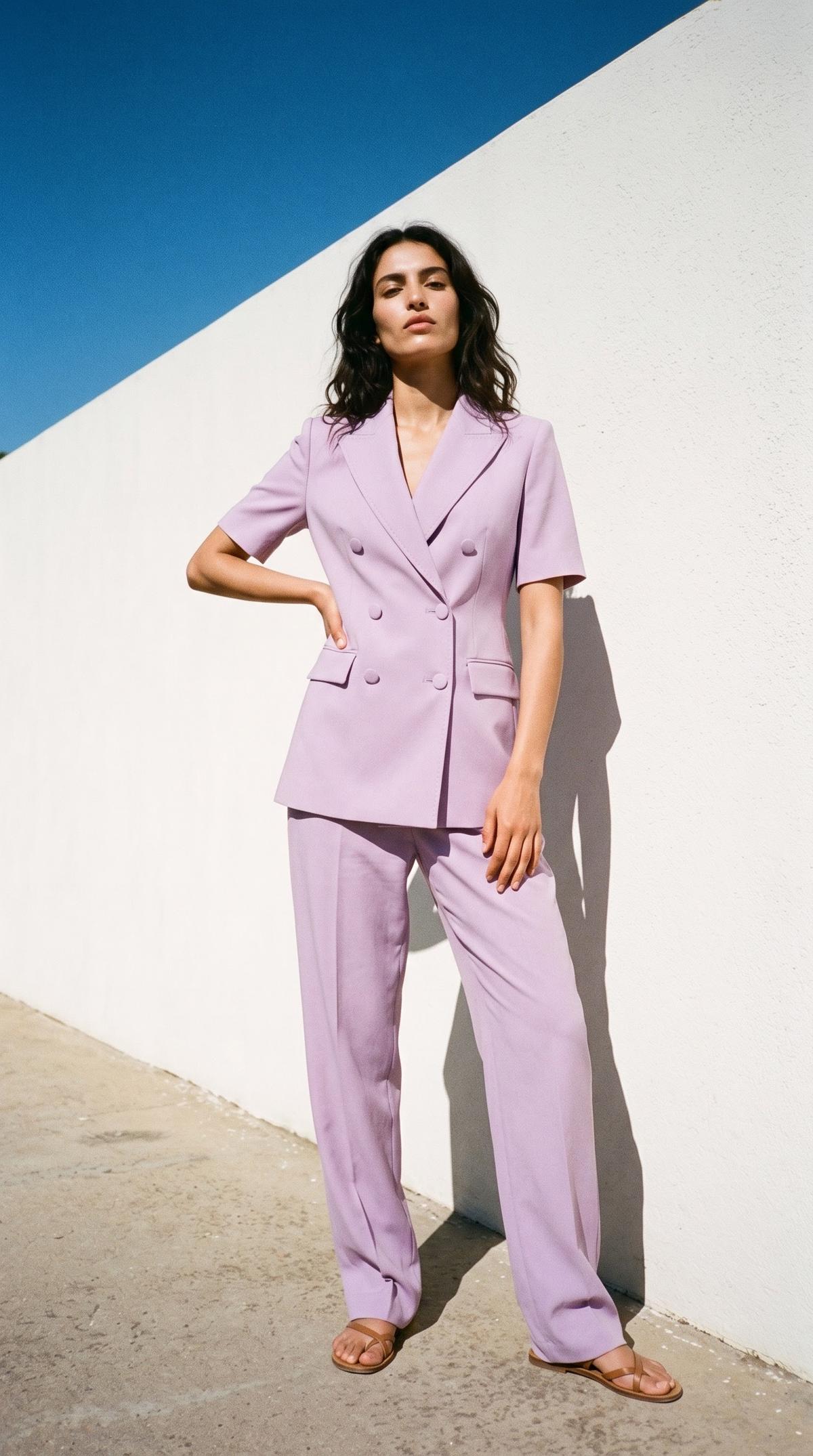
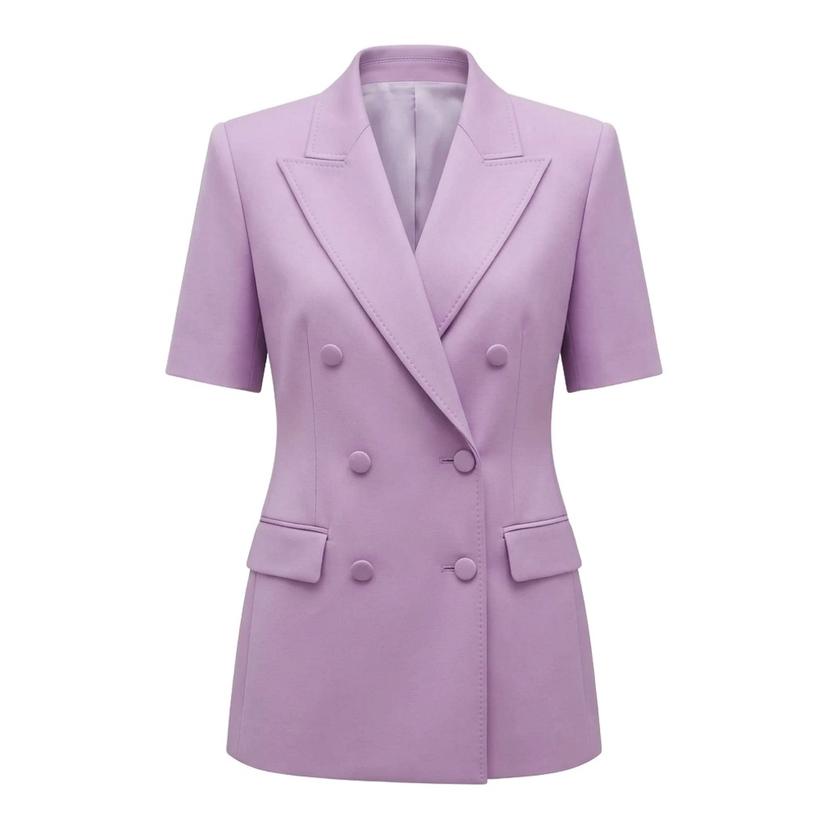
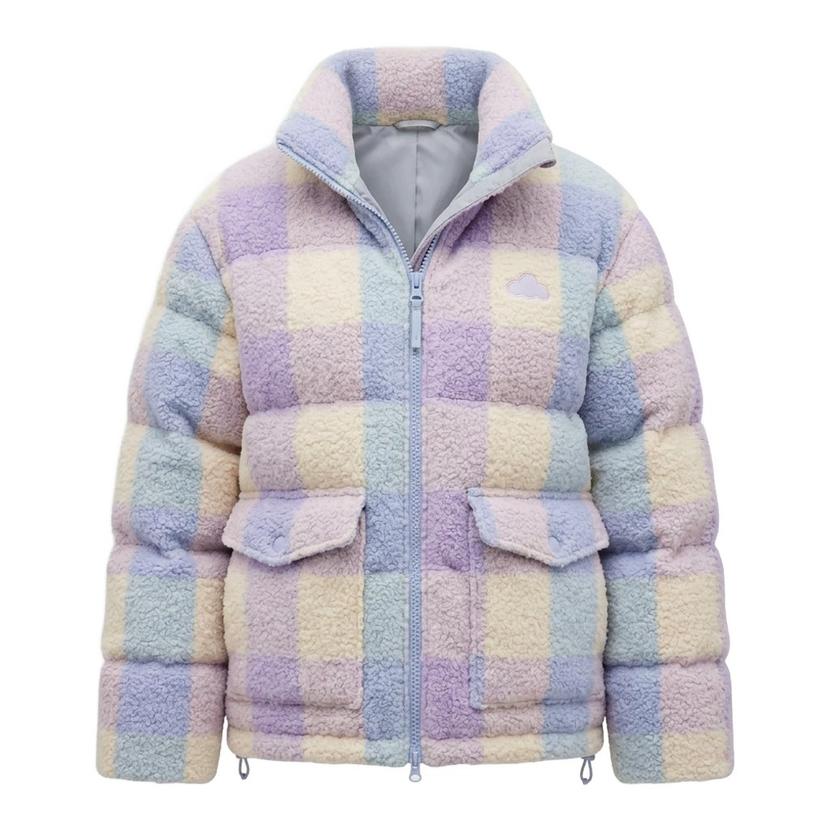
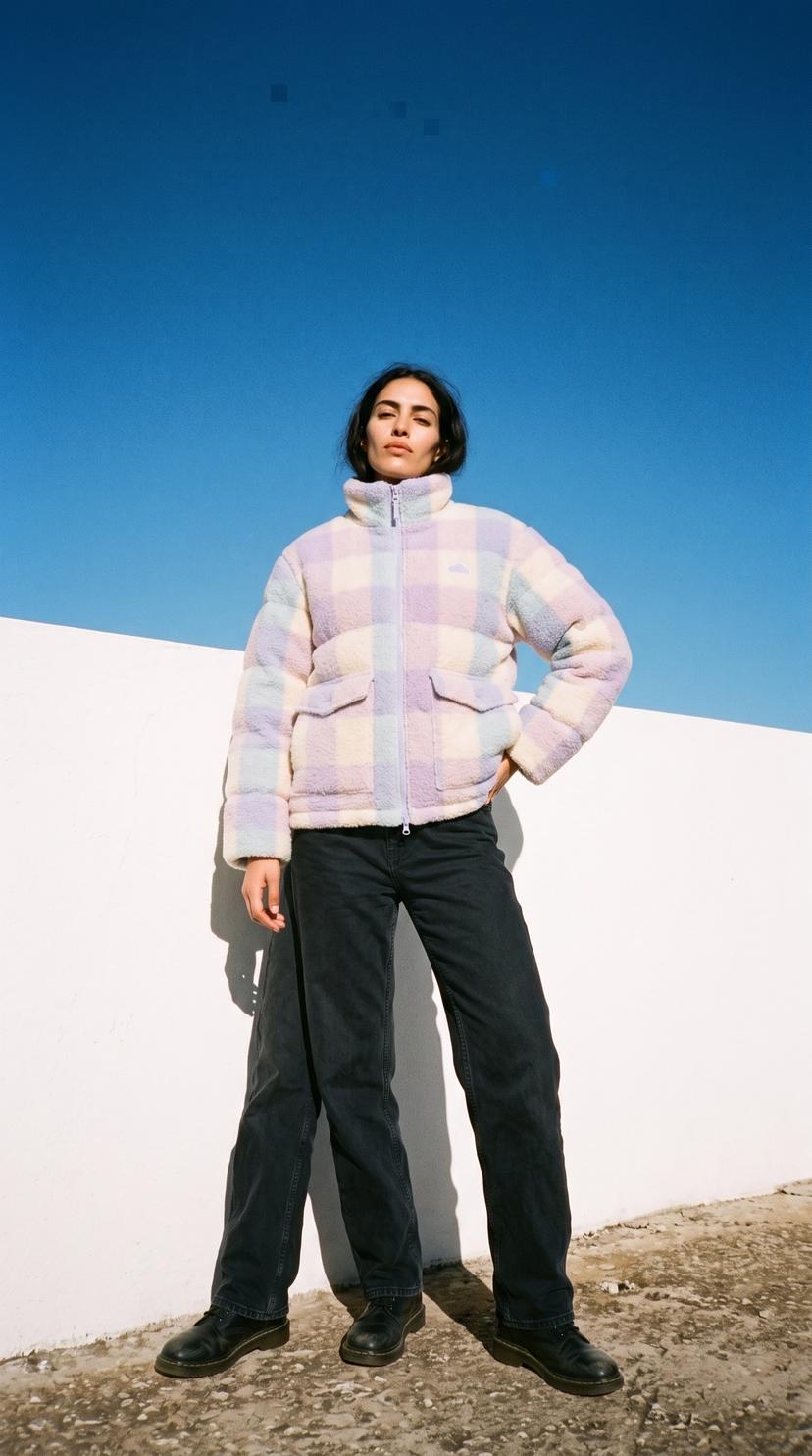
One recipe saved from a Product to Model shot (a woman of 25 from Morocco, full length, in front of a white wall under a deep blue sky, with a Visual style), then run again on three other products. Only the product changed.
A lilac blazer on the saved model and wall

A pastel check puffer in the same light
Mint trousers for the same collection
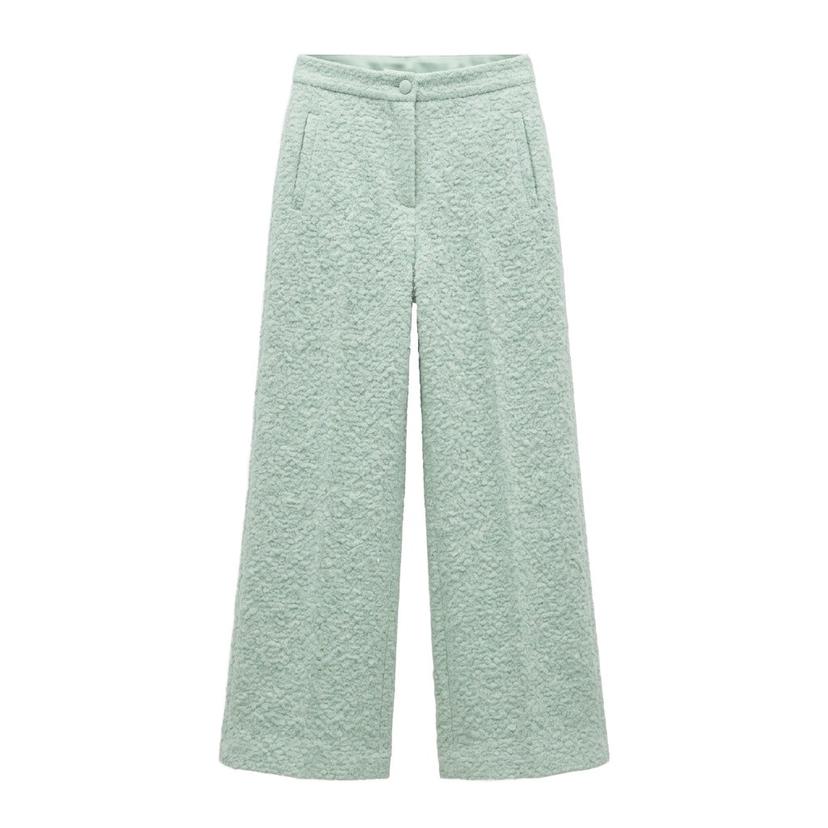
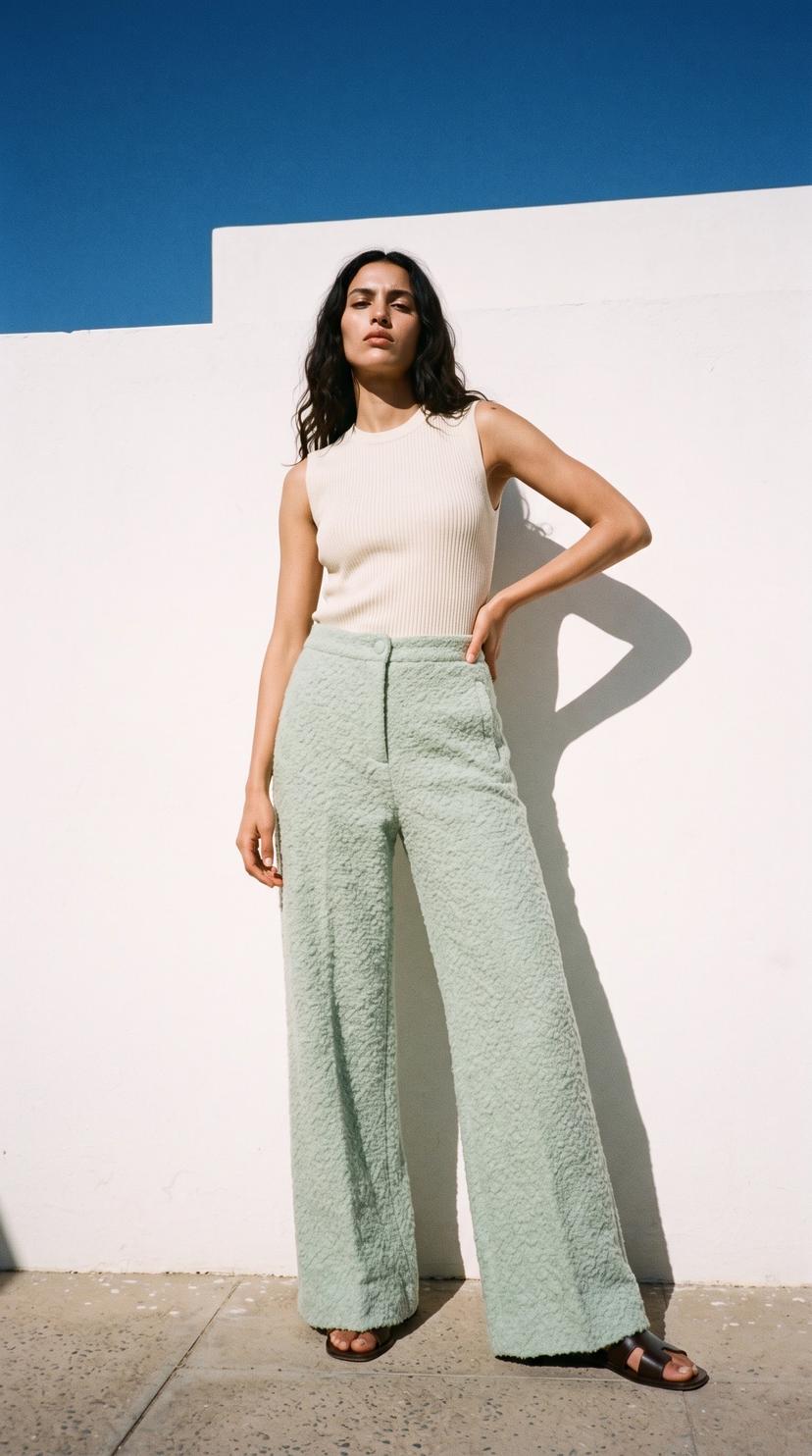
Run a custom workflow on a whole catalogue
In Generate in bulk, « My workflows » come first in the workflow menu. Pick one and its settings fill the form of the workflow it is based on: for Product to Model the gender, body, age, origin, features and scene; for a guided workflow its fields; for a free prompt workflow the prompt. Upload your images and the recipe runs once on each of them.
When the custom workflow has several pictures, « Your workflow's images » shows them and you choose the one your images replace, the first by default. The others stay in place on every creation: a second product, the model photo of a Virtual Try-On, the scene photo of a Product to Model. Bulk runs take up to 30 images on Pro, 50 on Business and 100 on Enterprise.
What it keeps, and what it costs
| What is saved | What it means when you run it again |
|---|---|
| The workflow | The same workflow opens, with its own panel |
| Fields and prompt | Every setting and every word, still editable |
| Quality level | Fast AI, Plus AI or Ultra AI, as in the original |
| Visual style | The same light and colours |
| Pictures | All of them come back; remove the ones to change |
Saving a workflow costs nothing. Running it costs the credits of the workflow it is based on, the same as any generation of that workflow: a Product to Model image is 1 credit on Fast AI, 3 on Plus AI and 7 on Ultra AI. Custom workflows are open on every plan, from Starter at 15 dollars a month.
Frequently asked questions
Can I save any creation as a custom workflow?+
Any generation you made in the studio, image or video. An uploaded file or an edit made without a workflow has no recipe to keep, so it cannot become one.
Does a custom workflow change my original creation?+
No. The creation stays as it was; the custom workflow is a copy of its recipe, and each run makes a new creation.
Can I change the settings before I run it?+
Yes. The panel opens filled with the saved settings and pictures, and you can change any of them before pressing Generate; the saved workflow stays as it was.
Can I run a custom workflow in bulk?+
Yes. In Generate in bulk your custom workflows come first in the menu; pick one, upload up to 30 images on Pro, and choose which picture of the recipe your images replace.
Can my AI agent use my custom workflows?+
Yes. The AI agent of your account reads your custom workflows and runs them on the pictures you give it, and it can save a creation as a custom workflow when you ask.
How many custom workflows can I save?+
As many as you like. They are listed first under « My workflows », in the order you choose.
Try it yourself
Everything on this page was made in the studio. Your first designs are minutes away.
Open the studioRelated features
- Zapier AI Product Photos: Automate Model ShotsRun Product to Model, Virtual Try-On, Ghost Mannequin and video workflows from Zapier: a new Shopify product or sheet row becomes an on-model photo. No code.
- AI Fashion Drawing Board: From Sketch to Real GarmentSketch a garment over a mannequin or your own photo and turn it into a realistic visual in about twenty seconds, with every version kept in a creation tree.
- AI Size Chart Generator for Clothing Tech PacksWrite a graded size chart for your tech pack with AI: points of measure, tolerances, your sizes in cm or inches, your own grading sheet. 1 credit a chart.
- Chrome Extension to Save Images to Your AI Fashion StudioFree Chrome extension: tick the images on any web page and import them into your AI fashion studio, a project or a Shopify product.
- Prefill AI Fashion Photo Settings from InspirationPick a photo that inspires you and it fills the workflow for you: model, pose, styling, scene, framing, angle. You shoot your own product.
- Import Instagram and Pinterest Posts into an AI Fashion StudioImport your Instagram, Facebook, X, Pinterest and YouTube posts into The New Black AI in a few clicks, and turn them into new product photos and videos.
- AI Photoshoot for Fashion BrandsReplace a fashion photoshoot with AI: your product on an AI model or your own, any setting and angle, ghost mannequin, flat lay, 4K and video.
- Multi-Brand Workspaces for Agencies and GroupsManage several fashion brands from one account: each brand gets its own Shopify store, brand kit and creations, on the same plan. Enterprise plan.