Chrome Extension to Save Images to Your AI Fashion Studio
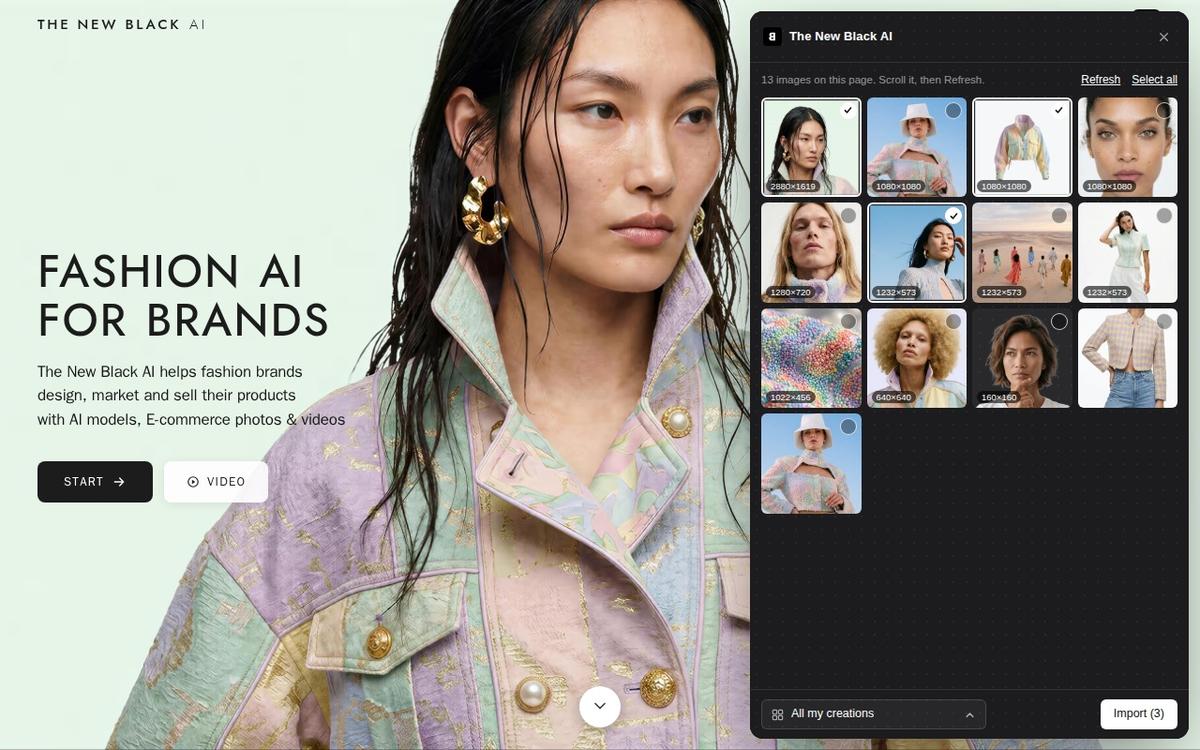
The New Black AI has a free Chrome extension that saves the images of any web page into your AI fashion studio. Open a brand's site, a lookbook or a Pinterest board, click the extension's icon, tick the pictures you want and press Import: they land in your creations, a project, your Uploads or on a Shopify product, with the address of the page they came from. From there they work like any photo of yours, in every workflow of the studio. The only place to install it is its [Chrome Web Store listing](https://chromewebstore.google.com/detail/the-new-black-ai/ifhcpnhobdanmdobmnbpipfdnjkjkiif).
Updated 9 November 2026
- 1Add the extension to Chrome
- 2Tick the images on the page
- 3Choose where they go and press Import
How it works
Add the extension to Chrome
Open the Chrome Web Store listing and press Add to Chrome, or go there from the studio: press Upload, open the From web tab and press Add our Chrome extension. The extension uses the session of thenewblack.ai in the same browser, so if you are signed in on the site you are signed in in the extension. If you are not, the panel offers Sign in and Create a free account, and brings you back once it is done.
Tick the images on the page
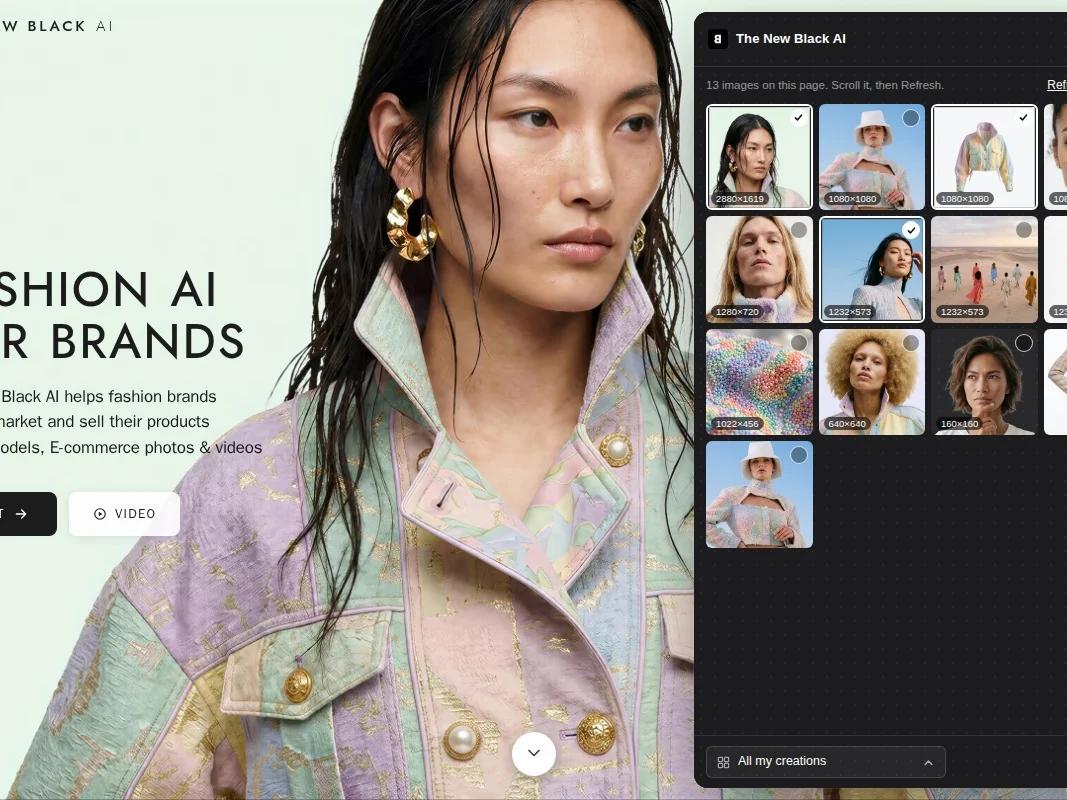
On any page, click the extension's icon in Chrome's toolbar. A panel slides in from the right with the page's images in a grid, the largest first, each with its size in pixels. Tick the ones you want, or press Select all. If the page loads more pictures as you scroll, scroll it under the panel and press Refresh: the new images join the grid and your ticks stay.
Choose where they go and press Import
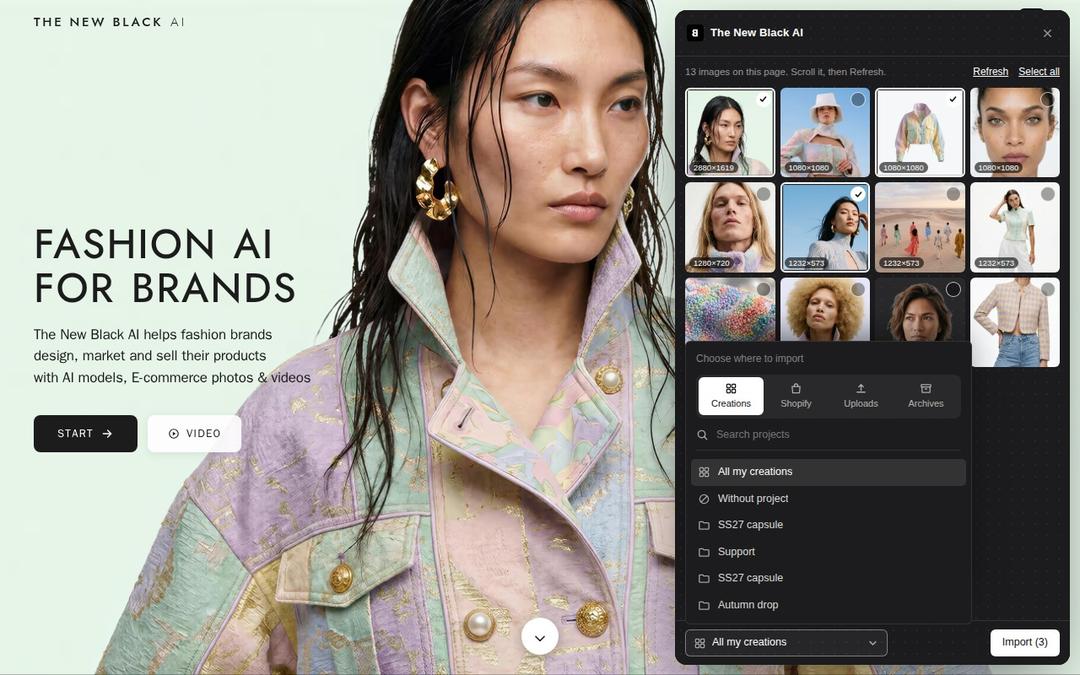
Left of the Import button, a menu offers the same views as the studio: Creations, Shopify, Uploads and Archives, then your projects, or on Shopify the products of your store. Pick one and press Import. Open in the studio then takes you to that view, and the extension remembers your choice.
What the extension does, and what it does not
It does one thing on purpose: it brings pictures from the web into your studio. Generating, editing and publishing happen in the studio.
What it picks up:
- Every image of the page at its largest version, including the big file behind a small thumbnail when the page lists several sizes, background images on screen, and the page's share image.
- The original file on Shopify stores and on Pinterest, rather than the resized copy the page shows.
- Not logos, icons or small pictos (anything under 160 pixels is left out), nor vector graphics or videos.
Formats: JPG, PNG and WebP are kept as they are; other formats, such as AVIF or GIF, are saved as a JPG. One image can weigh up to 15 MB. When your browser cannot read a picture itself, the extension sends its address and our servers fetch it, public addresses only.
Where each choice puts the image:
| Choice in the menu | Where the image lands |
|---|---|
| Creations | Among your creations, in a project or without one |
| Uploads | In Uploads only, in a project or without one |
| Shopify, then a product | Under that product in the studio's Shopify view, marked Unpublished. Nothing is sent to your store. |
| Archives | Archived, in a project or without one |
Importing is free and costs no credits. Imports count toward your library's upload allowance, the same one as the Upload button: 10 images without a plan or a credit pack, then over 30 days 100 with a credit pack, 200 on Starter, 500 on Pro and 2,000 on Business. The plans are on the pricing page.
Privacy: the extension reads a page only when you click its icon, and only that tab. It does not read your history, your other tabs, form fields or passwords. It sends only the images you ticked, the page's address and where to file them, and it stores on your device only your last choice of destination. The full text is in the privacy policy, section Chrome extension.
What you can do with the images in the studio
An imported picture is a file of yours, so every workflow can take it.
- Your product, seen on a retailer's page or your own store, goes into Product to Model to be worn by an AI model, in the setting and framing you choose.
- A model photo goes into Virtual Try-On as the person who wears your piece.
- A campaign that inspires you goes into Prefill from inspiration: the studio reads the picture and fills the open workflow's settings (model, pose, scene, framing) with what it sees, and your own product stays the subject. The inspiring picture itself is never sent to the generator. It is offered on Create a Product, Product to Model, Virtual Try-On, Reimagine your Model, Change Background and Ad Creative, it works as soon as the account holds at least one credit, and reading the picture costs nothing.
- A background or a setting goes into Change Background as the scene to place a product in.
The AI agent of your account can do the same import from a web address you give it.
Who it is for
Brands that collect references all day: a designer building a moodboard from lookbooks, a marketer saving campaign ideas, a merchant taking back product photos already online. Use pictures you have the right to use; for another brand's image, Prefill from inspiration takes the pose and the mood without reusing the picture.
Honest limits
- Desktop Chrome only. The extension runs in Chrome on a computer. There is no version for phones or tablets, which is why the From web tab of the Upload window shows only on a computer.
- Pages that load as you scroll. The panel shows what the page has loaded when you clicked. On Instagram, Pinterest and long shop pages, scroll first, then press Refresh.
- What you can see is what you get. The extension sees the page as your browser shows it. A post you cannot see in Chrome, on a private account for example, is not there to import.
- Your own accounts have a faster way. To bring in the posts of your own Instagram, Facebook, X, Pinterest or YouTube account, the Upload window imports them directly; see import your Instagram and Pinterest posts. Files on your computer go through Upload your own photos and videos.
- Some pages cannot be read. Chrome's own pages and the Web Store do not allow extensions, and a picture the page's server refuses to give out may come back as « could not be read from this page ».
Frequently asked questions
Is the extension free?+
Yes. The extension is free and importing costs no credits. Without a plan or a credit pack you can import up to 10 images; any plan or pack raises that ceiling.
Does it work on Safari, Firefox or on my phone?+
No. It is a Chrome extension for a computer. It does not exist for Safari, Firefox, phones or tablets.
Where do imported images go?+
Where you pick in the menu next to Import: among your creations, in Uploads, in Archives or in one of your projects, or under a Shopify product.
Can I import into a Shopify product?+
Yes, once your store is connected in Connectors. Choose Shopify in the menu, then the product: the images are filed under it in the studio as Unpublished, and nothing goes to your store until you publish it yourself.
Why does the panel show fewer images than the page?+
The page has not loaded the rest yet, or they are too small to be product pictures. Scroll the page, then press Refresh.
Do I need an account?+
Yes, a free account on The New Black AI, and you get free credits at signup. The extension uses your session on the site, so there is nothing to paste: sign in on thenewblack.ai in Chrome and the extension knows you.
Try it yourself
Everything on this page was made in the studio. Your first designs are minutes away.
Open the studioRelated features
- Prefill AI Fashion Photo Settings from InspirationPick a photo that inspires you and it fills the workflow for you: model, pose, styling, scene, framing, angle. The photo never reaches the generator; you shoot your own product.
- AI Photoshoot for Fashion BrandsReplace a fashion photoshoot with AI: your product on an AI model or your own, any setting and angle, ghost mannequin, flat lay, 4K, video, then straight to Shopify. From 1 credit.
- Multi-Brand Workspaces for Agencies and GroupsManage several fashion brands from one account: each brand gets its own Shopify store, brand kit and creations, on the same plan and credits. Switch in a click. Enterprise plan.
- AI Fashion Reels: Trending Outfit Transition VideosMake trending AI fashion reels from one photo: outfit transitions as people pass, as your model walks, at a finger snap, after a jump, and more. 10-second 9:16 videos for Reels, TikTok and Shorts.
- AI Fashion Video from Reference ImagesPut your model, your garment and a place into one video: add up to three reference pictures, describe the scene, and get a 5 to 15 second fashion clip in 9:16, 1:1 or 16:9.
- Publish Fashion Posts to Threads from the StudioConnect Threads in Connectors, then post or schedule your fashion images and videos to Threads from the Social Media agenda, next to Instagram and TikTok.
- AI Voice Over for Fashion VideosAI voice-over for fashion videos: write a text, choose one of 14 voices and get an MP3 to put under a product video or an ad. About half a credit for a 30-second script.
- Remove or Extract the Sound of a VideoRemove the sound of a video, extract it as an MP3 or replace it with your own music, in one Audio button. Remove and extract are instant and free with a plan or a credit pack.