Edit Your Images with AI: A Step-by-Step Guide
Published 6 August 2024
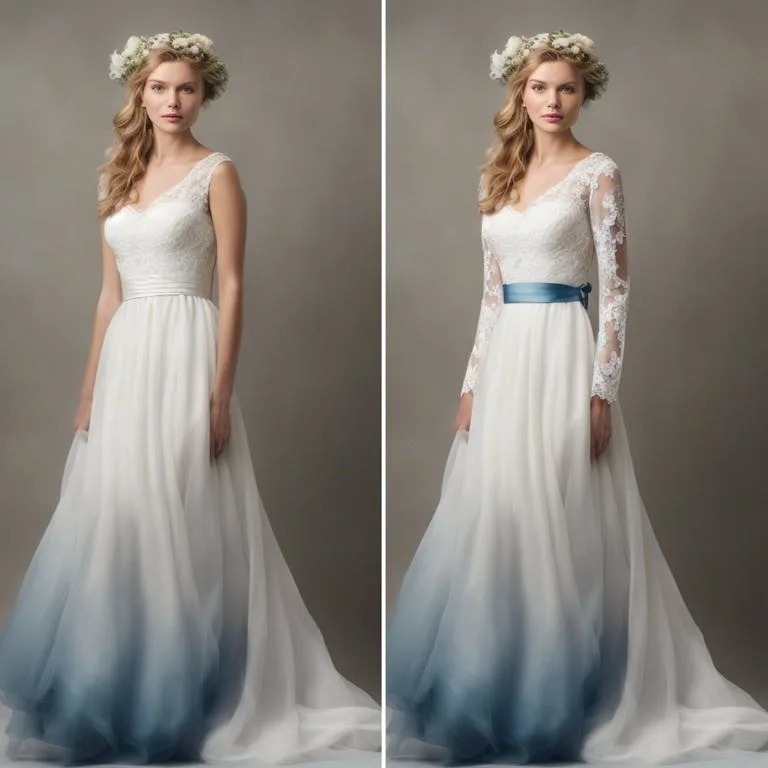
Editing an image with The New Black AI comes down to two gestures: point at an area, then say what should be there. This guide walks through the process of adding details to a picture, accessories and clothing changes alike, using the retouching panel.
Open the retouch feature
Click the "Retouch" button to open the studio panel. You can also click on the image itself and pick the retouch option, which gets you to the same place. Everything below happens inside that panel.
Upload your image
Load the picture you want to edit. That file becomes the canvas for the rest of the session, so start from the version you actually want to keep working on.
Mask the area you want to change
With the image loaded, select the zone where the new detail should appear. The brush tool handles this: paint over the specific section and nothing outside it will be touched. To put sunglasses on a face, for example, brush carefully across the part of the face where the sunglasses will sit.
Describe what you want added
With the mask in place, type your addition in the replace field. In the sunglasses example, "sunglasses" is enough. The AI then processes the request, which normally takes about 10 to 15 seconds, and the accessory comes back placed in the masked area.
Keep going with more changes
Nothing stops at one edit. To turn the shoes into black sneakers, mask the footwear area and enter "black sneakers" in the replace field. To add gloves, do the same over the hands and specify "black gloves". Each pass builds on the previous result, so an image can be reworked detail by detail until the look is right.
Why this approach works
Adding or replacing an element used to mean layers, selections, and a fair amount of patience. Here it is a mask and a short description. Experimenting is cheap, which is the real difference: you can try a version, look at it, and try another one. The feature page for AI image retouching shows what else fits in the same workflow, and removing details rather than adding them works exactly the same way.
Edit your first image
Take one image and one idea, an accessory to add or a color to change, and run it through. Open the AI fashion studio and start with the brush.
Related articles
- How to Create an AI Model For Your Bag DesignA step by step guide to presenting a bag on AI generated models: prepare the images, choose the model, write the prompt, and keep results consistent.
- Ghost Mannequin Photography Guide: The New Black AIGhost mannequin photography three ways: the studio and its equipment, the retouching and its cost, and the AI that makes the hollow shot from one photo in fifteen seconds, with a comparison table.
- Visual DNA: Train the AI on Your References: The New Black AIUpload reference images or give a web page, choose a focus (brand vibe, collection direction or product type), and every new design follows that creative direction instead of a generic one.
- AI Video Editor from One Sentence: The New Black AIUpload a clip, write what should change: make it night, add snow, put the model on a beach: and get the same video with that one change. Priced by the second.
- AI Ad Creative with Your Headline: The New Black AIUpload a product photo, write your headline, give an art direction, and get a finished ad visual with the words set into the image. 1 credit in Standard, 3 in Pro.
- Create a Cosy Knitted Design with AIDesign cosy knitted sweaters, cardigans and dresses with AI: set the fit, the yarn, the pattern and the colors, then refine the details in seconds.
- How to Create Winter Outfits Instantly with AI Fashion DesignCreate winter outfits in seconds with AI fashion design: describe the concept, pick a style, name the fabrics and prints, then add boots and accessories.
- Sketch to AI Fashion Design: A New Way to Visualize Clothing IdeasTurn a fashion sketch into a photoreal garment in seconds. How to write prompts, iterate on concepts, and work from any type of drawing.