Edit an Area: Retouch a Fashion Image with AI
Edit an Area changes one part of a fashion picture and leaves the rest exactly as it was. Select the part, a collar, a pocket, a sleeve, the whole jacket, then say what it should become, or show it: add a picture of a print, a fabric, a collar or a jacket, and the selected area becomes that, fitted to the folds and the light. It used to be called Retouch a Zone, and Mask Edit in the window of a picture.
Updated 18 October 2026
- 1Add your picture
- 2Select the part to change
- 3Describe the change, or show it
- 4Run another round
How it works
Add your picture
Open Edit an Area in the studio's Workflows panel and add any picture: one of your creations from the Library, or a photo from your computer. On a creation you already have, it is one click shorter: open the picture and press Edit an Area in its window.
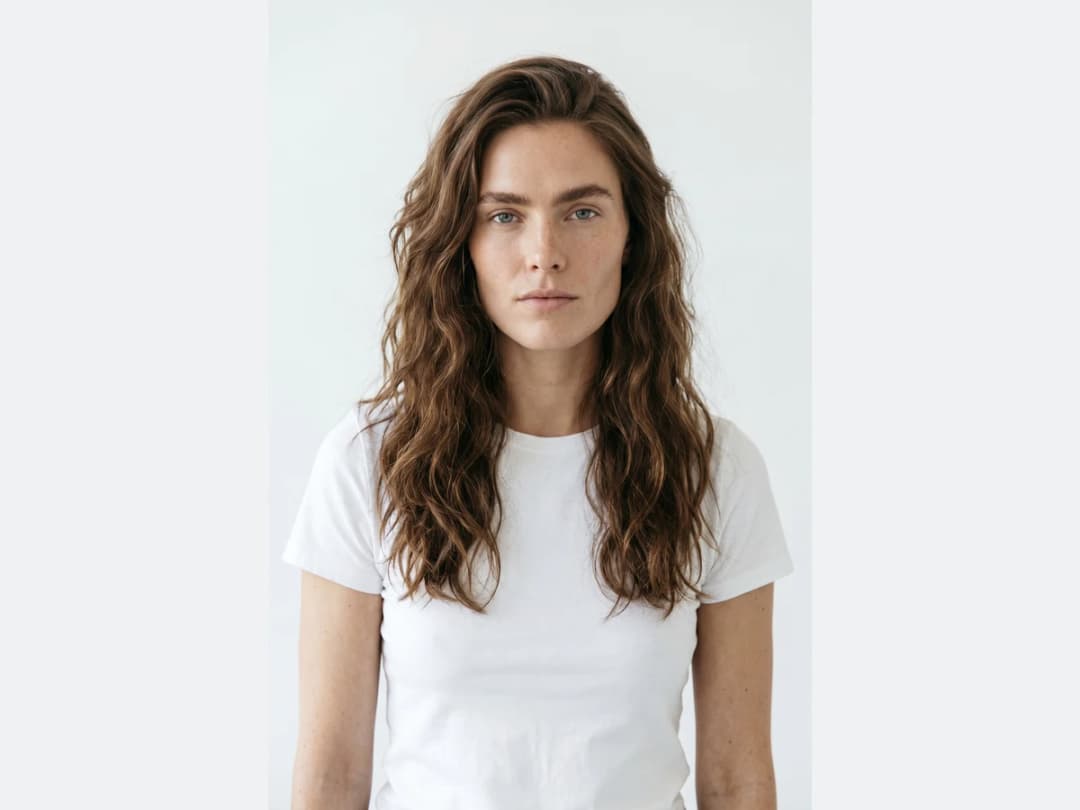
Select the part to change
Press Paint the area and pick the tool that suits the part:
| Tool | Best for |
|---|---|
| Select with AI | Click a pocket, a collar or a jacket and it is outlined for you; click more of it to add, or use Remove to take a part out |
| Magnetic lasso | A part with clear edges: the line follows them as you go |
| Polygon lasso | Straight edges, drawn point by point |
| Brush | A free area, painted a little wider than the detail |
| Eraser | Taking back what was painted too far |
Describe the change, or show it
Type what the area should become: long lace sleeves, a denim collar, no logo on the chest. Or add a reference picture, picked from your computer or your Library: a print to put on the skirt, a fabric for the coat, the collar you want, a jacket to swap in. The painted area becomes that, fitted to the folds and the light of the photo, and everything outside it stays to the pixel.
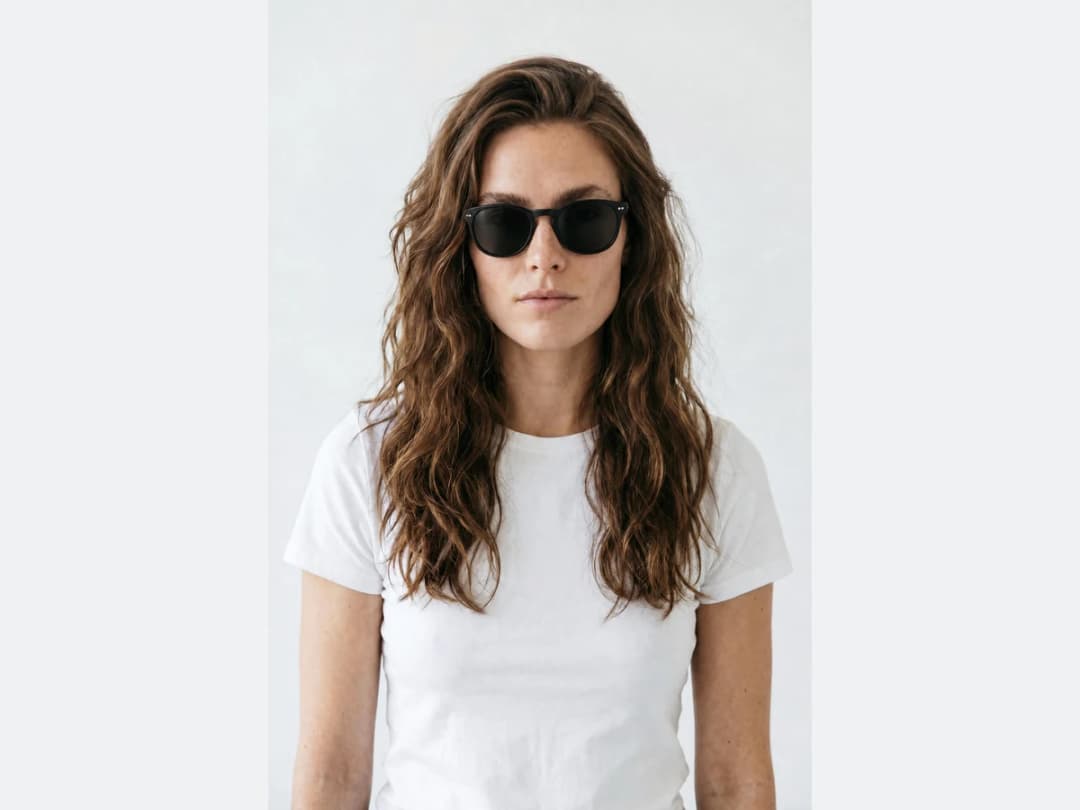
Run another round
The edits stack: change the collar, then the buttons, then the colour of the belt, one pass each, until the design is where you want it. Each pass costs 1 credit with Standard AI or 3 with Pro AI.
What fashion brands use it for
- Design changes on a finished photo. A neckline, a sleeve length, a pocket, without regenerating the model or the scene.
- Putting a real print or fabric on a design. Select the garment and add a photo of the fabric: the print follows the folds.
- Fixing a detail. A logo that should not be there, a strap, a button, a stray accessory.
- Swapping one piece of an outfit. Select the jacket and add a picture of another jacket.
Related edits have their own pages: change the background, erase something out of the frame, swap the face, or enhance the result to HD once the design is settled.
Frequently asked questions
What happened to Retouch a Zone and Mask Edit?+
They are one tool now, called Edit an Area: in the studio's Workflows panel for any picture, and in the window of a picture you already have.
How do I select the area?+
Five ways: Select with AI (click the part and it is outlined), the magnetic lasso, the polygon lasso, the brush and the eraser. Click more of a part to add to the selection, or use Remove to refine it.
Can I show what the area should become instead of describing it?+
Yes. Add a reference picture, from your computer or your Library: a print, a fabric, a collar, a jacket. The selected area becomes that, fitted to the folds and the light.
What happens outside the area?+
Nothing. Everything outside the selected area stays exactly as it was.
Can I use it on a photo that was not made in the studio?+
Yes. Add any photo from your computer in the Workflows panel, then select and edit as usual.
How much does an edit cost?+
1 credit with Standard AI, 3 with Pro AI, per edit.
Can my AI agent select the area for me?+
No. The area is selected by your own hand; ask Mila and she tells you where to open Edit an Area, then works on the result with you.
Try it yourself
Everything on this page was made in the studio. Your first designs are minutes away.
Open the studioRelated features
- AI Clothes Maker, Design Clothes Online: The New Black AIDesign clothes online with an AI clothes maker: describe the piece, see it worn in seconds, iterate, then send a tech pack to your factory. 1 credit per design.
- AI Fashion Design for Kids, Toddlers and BabiesDesign kids fashion with AI: pick the age, from toddler to teenager, describe the outfit and get original children's clothing concepts.
- Change Fabric or Print on a Fashion ImageSwap the fabric on a clothing photo with AI: upload the garment and a new textile, describe the piece, and see the print applied realistically.
- AI Perfume and Fragrance Design GeneratorDesign perfume bottles with AI: your brand name on the label, the glass, the cap and the mood, rendered as market ready fragrance visuals.
- AI Beauty Cream Product GeneratorDesign cream jars and skincare packaging with AI: the jar, the lid, the label and the texture of the formula itself, ready for your brand.
- Create Front and Back Fashion Designs with AIGenerate the front and back of a fashion design in one image with AI: matched details, proportions and style from a single prompt.
- Turn an Image into a Flat 2D SketchTurn any clothing photo into a clean flat sketch in seconds, then export it as SVG to edit in Illustrator and drop it into your tech pack.
- Change Clothes Colors with AIRecolor any garment on a photo with AI: name the part to change, pick a color or type a HEX code, and get a realistic result in seconds.
- AI Sunglasses Design GeneratorDesign sunglasses with AI: lens shapes, frame lines and colors, rendered on a real face so the fit and attitude read at first glance.
- AI Jewelry Design GeneratorDesign rings, necklaces, bracelets and earrings with AI: pick the metal, the stones and the style, and get detailed jewelry concepts in seconds.