Create Front and Back Fashion Designs with AI
This feature generates the front and the back of a fashion design in a single image, from a single prompt. Instead of creating each view separately and hoping the details line up, you get a matched pair: same garment, same proportions, same print placement, seen from both sides at once. It is the difference between two pictures of an idea and one complete design.
Updated 25 September 2026
- 1Enable the Front and Back option
- 2Describe your outfit and choose your model
- 3Read the design as a whole
How it works
Enable the Front and Back option
In the AI fashion design generator, go to Text to Image, choose clothing, and switch on the Front and Back option.
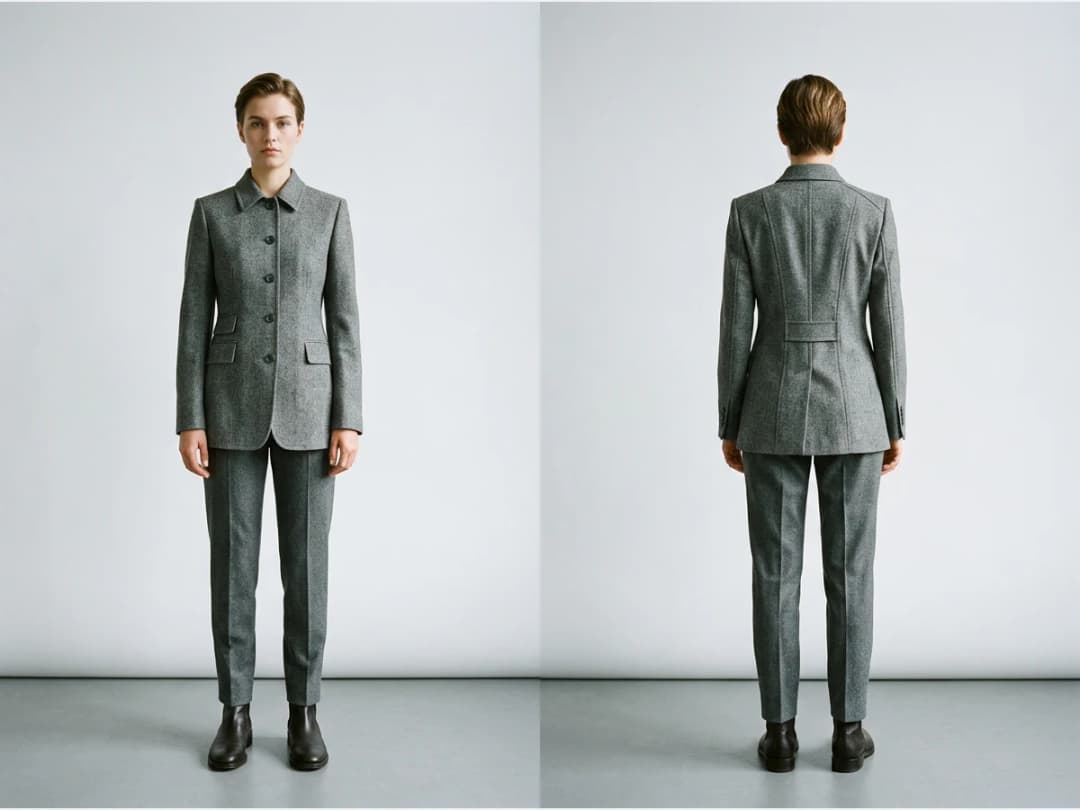
Describe your outfit and choose your model
Describe the design, a wedding dress, a jumpsuit, a hooded coat, then pick the model type, age, and country. Click Create.
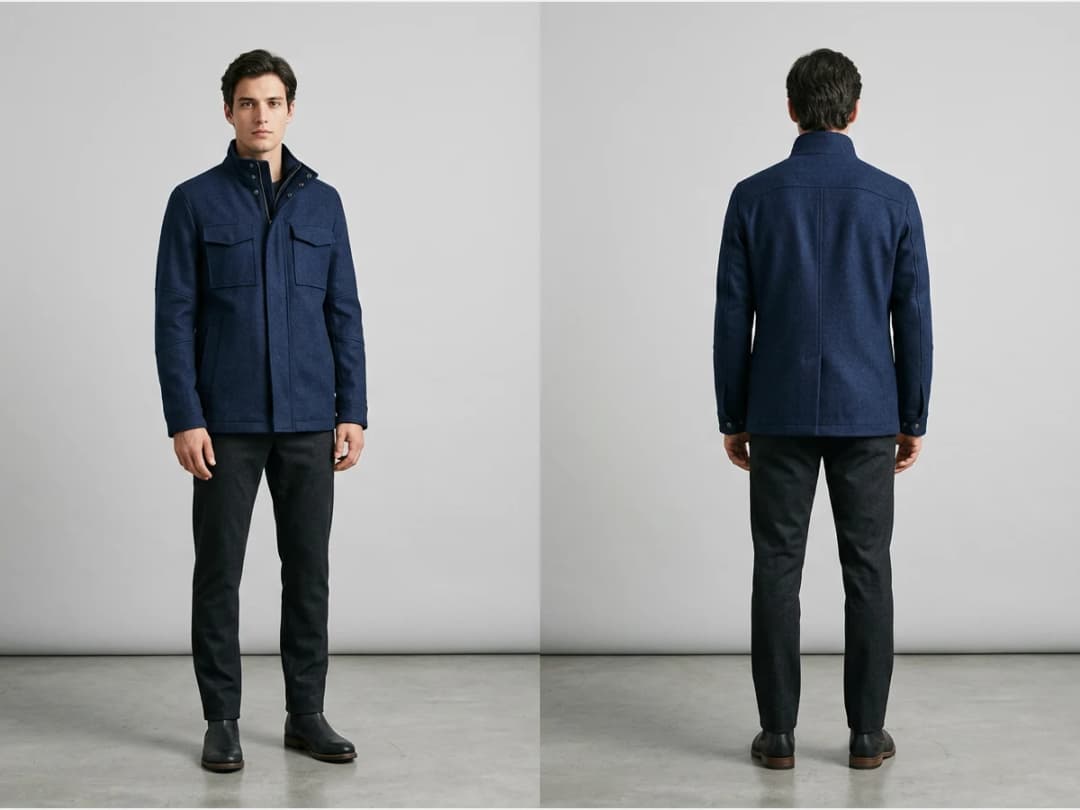
Read the design as a whole
The result shows both views side by side on the same model. The back is where designs are usually left vague, a hood's fall, a print crossing a seam, the closure, and this is precisely what the paired view forces you to decide.
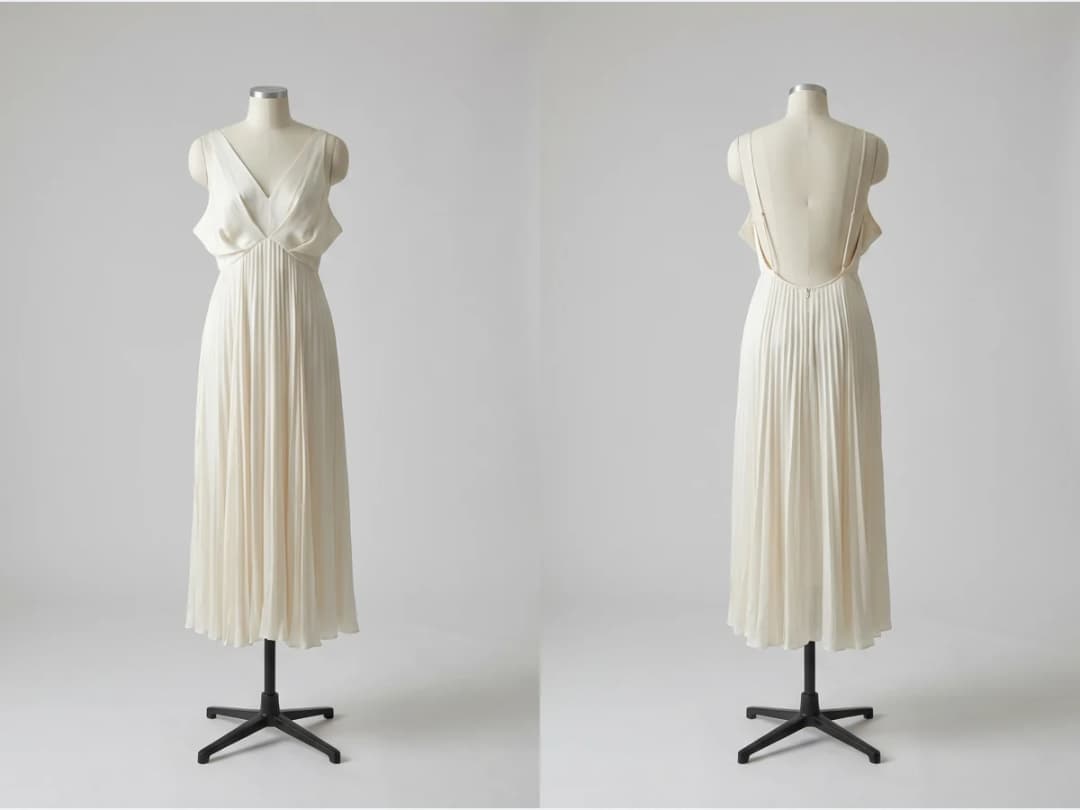
Faster iteration on complete designs
Generating both perspectives in one step changes the pace of ideation: every iteration is a full garment, not a front waiting for its back. Silhouette experiments, print placements, and texture directions all resolve in one pass, which means more directions explored in the same working session.
A front and back pair is also the natural handoff to development: the views a flat sketch and a tech pack are built from. Open the studio and generate your first two sided design.
Frequently asked questions
Do the two views really match?+
Yes, that is what the feature is for. Both views are generated together in one image, so the garment, its proportions, and its style read as one design rather than two approximations. It removes the manual aligning you would do generating each side separately.
How do I turn the option on?+
In the design studio, go to Text to Image, pick clothing, and enable the Front and Back option before describing your design. You then choose the model type, age, and country like any other generation.
What designs benefit most?+
Anything where the back carries real design weight: coats and hoods, dresses with back closures or low backs, prints that wrap the body, color blocked pieces. For simple front led garments the paired view is still useful as a completeness check.
Can I use the images commercially?+
Yes, on any plan: everything you generate is yours to sell, print and publish. The image lands in your studio grid and can move on to any other workflow, from flat sketches to try-on.
Try it yourself
Everything on this page was made in the studio. Your first designs are minutes away.
Open the studioRelated features
- AI Fashion Video from Reference ImagesPut your model, your garment and a place into one video: add up to three reference pictures, describe the scene, and get a 5 to 15 second fashion clip in 9:16, 1:1 or 16:9.
- Fashion Reel Templates & AI Motion DesignEighteen Motion Design templates for fashion reels: drop your photos or clips, edit the words, render a 10-second video in 9:16, 4:5, 1:1 or 16:9. One credit, every plan.
- AI Clothes Maker, Design Clothes Online: The New Black AIDesign clothes online with an AI clothes maker: describe the piece, see it worn in seconds, iterate, then send a tech pack to your factory. 1 credit per design.
- AI Image Generator for Fashion: Create or Edit Any ImageWrite what you want and get the image, or upload up to three references and describe the change: the free-prompt tool that creates or edits any fashion visual, in any format.
- Create Similar Outfits with AIUpload an outfit image and get close variations of it: same spirit, same silhouette, new pieces. The fast way to build a capsule around one look that works.
- AI Image Vectorizer for Fashion: Logo, Print and Artwork to SVGTurn a logo, a print or an illustration into a real SVG: colour shapes that scale to any size, ready for screen printing, embroidery, labels and Illustrator. 1 credit.
- Generate AI Fashion in Bulk for Your CatalogGenerate a whole catalog in one run: upload up to 30 product photos, pick a workflow, write one brief for the batch, and get AI models, try-ons or videos for every item at once.
- Create an AI Video of a Fashion Model Turning AroundTurn a front and a back photo into a smooth AI turnaround video with Model 360: the model turns on the spot or the camera orbits, every detail of the outfit kept from every side.
- AI Fashion Design for Kids, Toddlers and BabiesDesign kids fashion with AI: pick the age, from toddler to teenager, describe the outfit and get original children's clothing concepts.
- Extend an Image to a New Ratio with AIChange the aspect ratio of any photo with AI. Pick a new format such as 1:1, 9:16 or 16:9 and the AI extends the scene to fill it, instead of cropping what is already there.