AI Virtual Try On Bracelet (Jewelry)
The AI bracelet try on puts a bracelet on a real wrist without a photoshoot or a physical sample. A bracelet is the smallest thing in almost any photo it appears in, so the work is in the close range: the AI positions the piece on the wrist and blends it with the skin, the shadows, and the light of the source image so a tight crop still holds up. Upload a hand or wrist image and your bracelet design, and the worn shot is ready in seconds.
Updated 17 September 2026
- 1Upload your model image
- 2Upload your bracelet design
- 3Refine your designs worn
How it works
Upload your model image
Pick a photo where the wrist is in frame and doing something natural: a raised hand, hands held together, an arm crossing the body. You can use your own model photos or create one with AI on the platform. The closer the wrist is to the camera, the more of the bracelet the result can show.
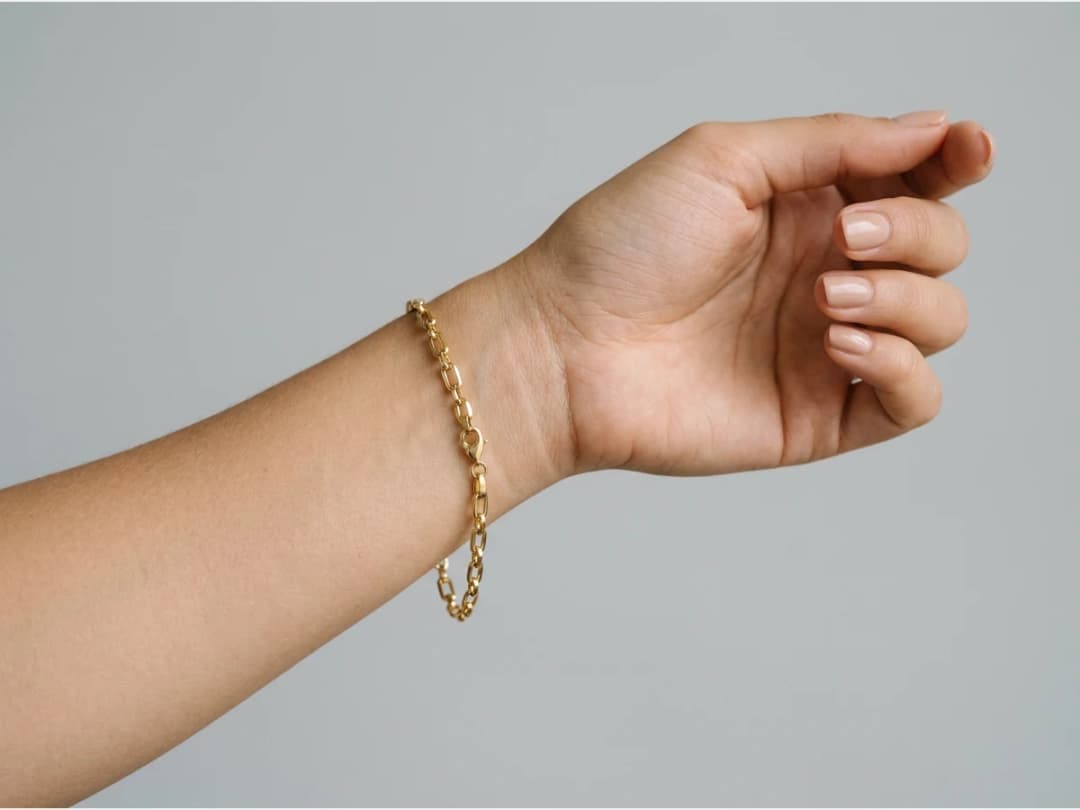
Upload your bracelet design
Add the image of the piece, describe it briefly, and specify the size. Wrist pieces live or die by scale: a fine chain and a wide cuff occupy the same product photo very differently, and stating the size keeps the AI from guessing.
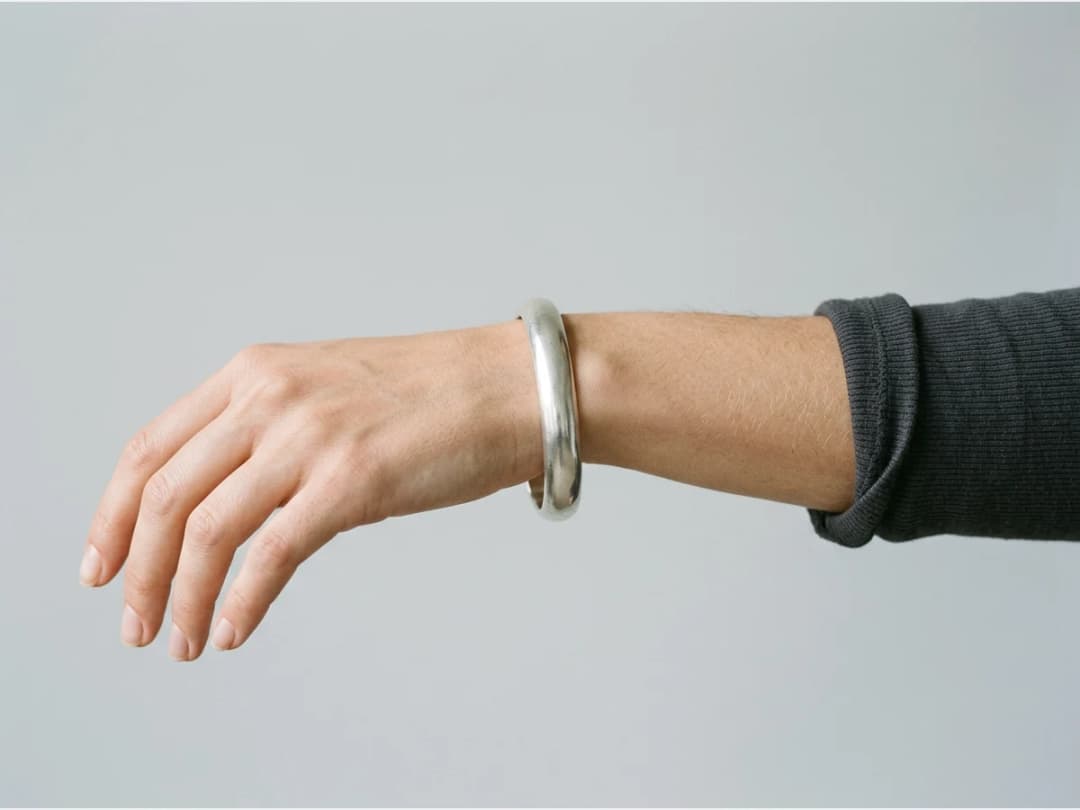
Refine your designs worn
Because the pass is instant, it doubles as a design review: see a prototype on skin before it exists, adjust, run it again. Brands use the same loop to shoot a whole bracelet line on one consistent model.
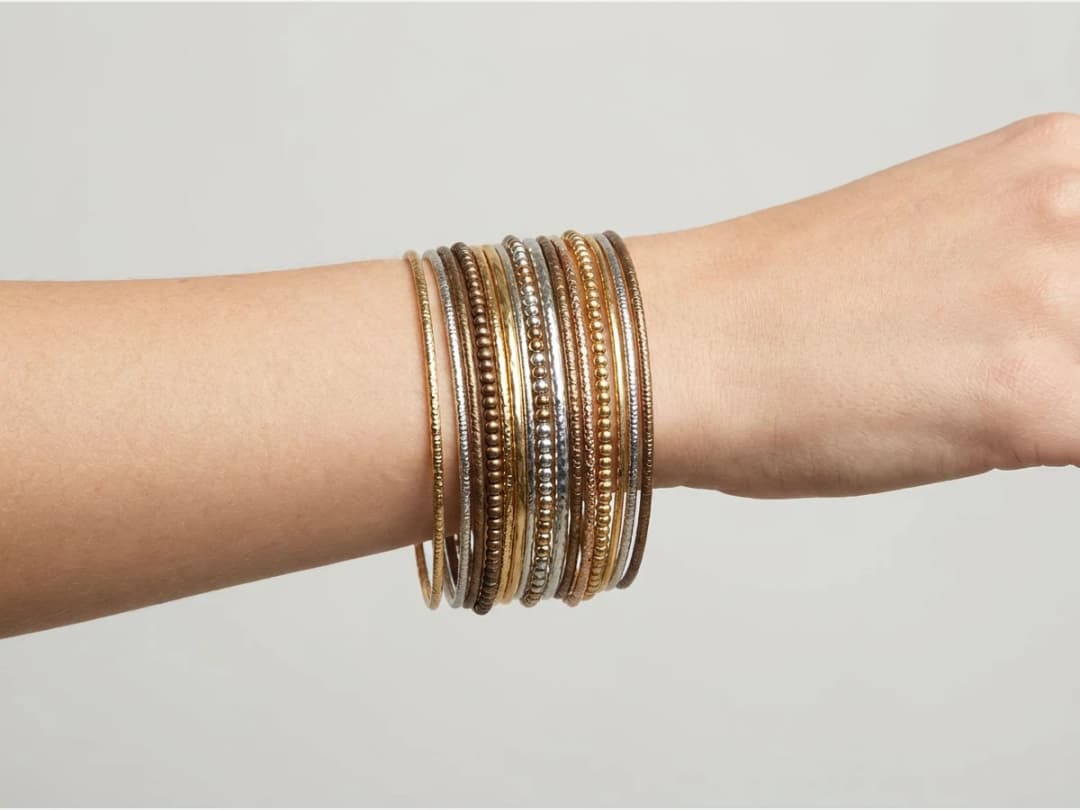
The close up is the product shot
Bracelet buyers zoom in, so the macro view is the one that sells, and it is exactly the view a casual photo never provides. The try on gives you that crop on demand. The sibling passes cover the rest of a jewelry line: necklaces on the neckline, and the generic jewelry try on for earrings and rings.
Frequently asked questions
What wrist photo gives the best result?+
One where the wrist is clearly visible and reasonably close to the camera, in good light. Skin contact is the whole game for a bracelet, so the AI needs to see the wrist it will wrap the piece around.
How does the AI know how big my bracelet is?+
You tell it. Describe the piece briefly when you upload it and specify the size; a product photo alone does not carry scale, and the description is what anchors it.
Can I try a design that has not been made yet?+
Yes. Any bracelet image works, including a render or an AI generated design, which is what makes the pass useful for refining prototypes before production.
Where do the results land and can I sell with them?+
Results land in your studio grid, reusable in any other workflow. It all runs in the browser in the try on studio.
Try it yourself
Everything on this page was made in the studio. Your first designs are minutes away.
Open the studioRelated features
- AI Virtual Try On BagsSee any bag on a model in seconds: upload a photo and a handbag or purse image, and the AI matches lighting, proportions, and perspective.
- Create Kid Fashion Clothing Models with AIUpload a kids clothing photo and get a child AI model wearing it in about 30 seconds: no casting, no studio, visuals ready for your store.
- Virtual Try On Head Accessories with AISee any hat, cap, or beanie worn before buying: AI fits the headwear to the face, the hairstyle, and the perspective of your photo.
- Create an AI Fashion Model for SocksUpload a sock photo, describe the model and the scene, and get visuals framed so the socks stay the point: no shoes, no photoshoot.
- AI Ghost Mannequin Generator: Invisible Mannequin PhotosCreate the ghost mannequin effect from one garment photo: the AI removes the model or mannequin and rebuilds the inner collar. Free to try, about 15 seconds an image, ready for your store.
- Reimagine Your Model in New ScenesCreate a back view, a side view or a close up of a fashion photo with AI: upload the original model and describe the angle you want to see.
- AI Virtual Try On ShoesSwap shoes on any photo with AI: upload a model and a new pair, and the original shoes are replaced with realistic proportions and lighting.
- AI Fashion Models for Beauty and Cosmetic ProductsTurn a cosmetic product photo into an AI model visual: editorial beauty images without a photoshoot, with a model whose age and country you choose.
- AI Fashion Models for EarringsTurn an earrings photo into a close AI model shot: the ear, the skin, and the detail of your piece, without booking a macro photoshoot.
- AI Fashion Models for SunglassesUpload a sunglasses photo and get an AI model wearing them: see how the frame sits on a face and build eyewear visuals without a photoshoot.