Create Video from Text or Image: AI Fashion Video
Create video from text or image turns a still into a moving clip, or makes the clip from words alone. Upload a photo, a runway shot, a product picture, a portrait, even a jewelry close-up, or simply describe the scene; choose the format, the length and the sound, and the AI renders the video. It is the general-purpose door into fashion video: whatever the image shows, or whatever the sentence says, is what starts moving.
Updated 1 October 2026
- 1Start from an image, or from text
- 2Choose the format, the length and the sound
- 3Generate and reuse it anywhere
How it works
Start from an image, or from text
Any fashion image qualifies: a photo of yourself, a model on a runway, a design generated in the studio, a product shot. Upload it as the start image and the AI reads what is in the frame to decide how it should move. Or leave the image out and write the scene: a model in a red coat crossing a Paris street at night, a silk dress moving in the wind. An optional end image makes the clip travel from the first picture to the second.
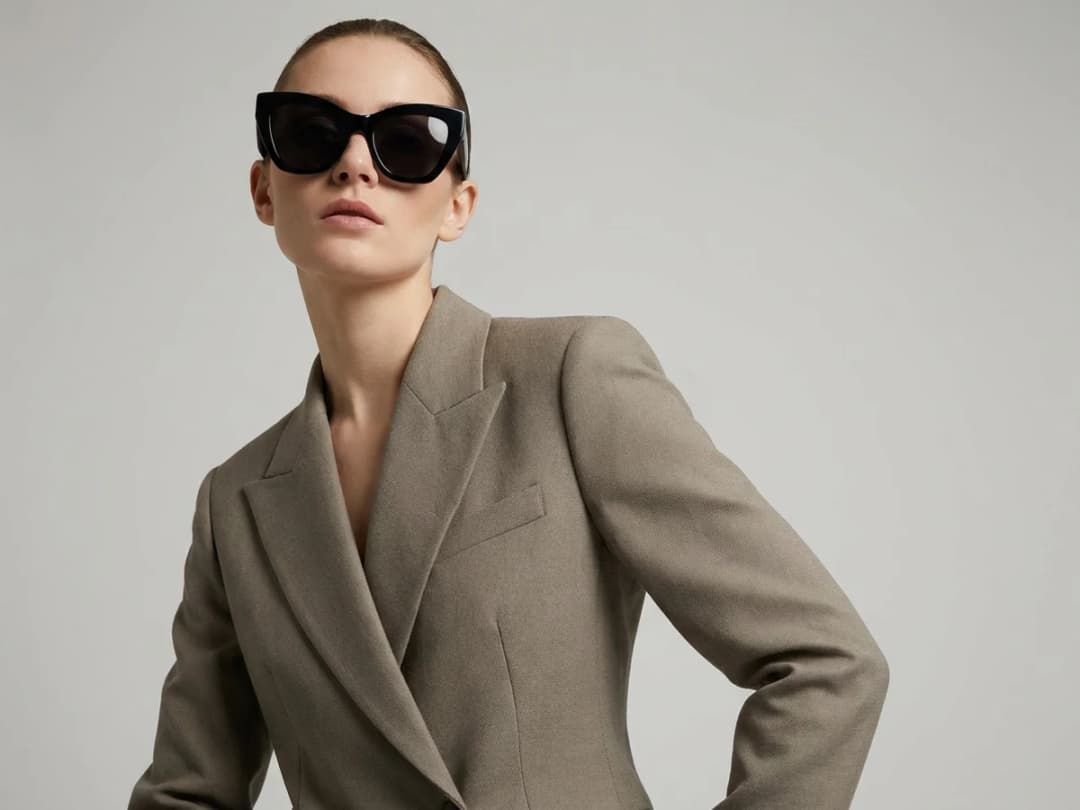
Choose the format, the length and the sound
Pick the format for the destination (9:16, 16:9, 1:1, 3:4, 4:3, 21:9), the length from 5 to 30 seconds, and describe the sound if you want any: a voice, a music, the ambience of the scene. The audio is generated with the picture.
Generate and reuse it anywhere
Press Generate; the price is on the button. The video lands in your studio grid next to the source image. From there it can go to a product page, a social post or a presentation, and the same image can be animated again for a different take.
Resolution and audio
Standard renders in 720p with generated audio, from text alone or from a start image and an optional end image. Pro renders in 1080p with sound and accepts the same inputs. Every video workflow of the studio has the same two sections, Resolution and Audio: picking 1080p switches to Pro, and the sound you describe is part of the file, so it travels with the clip to every network.
One feature, every kind of image
Because the input is an image or a sentence, this workflow has no fixed subject. A product photo becomes a product clip, a design sketch becomes a moving concept, an artistic portrait becomes a piece of storytelling. When your subject is a specific product category, the dedicated pages go deeper into what moves and why: jewelry video, shoes and sneakers video, bag video, and sunglasses video. Open the studio to make your first clip.
Standard or Pro: quality, sound and price
Standard is the economical one: 2.2 credits per second, so 11 credits for a 5 second clip and 22 for 10 seconds, in 720p with generated audio. Pro renders in 1080p with sound at 4.4 credits per second: 22 credits for 5 seconds, 44 for 10. The price is shown on the button before you generate.
This workflow is the open door: you describe any motion you like. For the usual jobs, the studio has eight guided video workflows that ask for the right inputs and nothing else: UGC Video, Model Walk, Product 360, Virtual Try-On Video, Outfit Transition, Fashion Ad, Detail Close-up and Editorial Lookbook. A clip you already have can be changed afterwards with Edit Video.
Frequently asked questions
Do I need an image?+
No. Text alone is enough; a start image and an end image are optional.
What kinds of images can I animate?+
Practically any fashion related still: photos you took, images generated in the studio, product shots, sketches, portraits. The AI works from what is visible in the frame, so a clear subject gives a clearer motion.
Do I control what the motion looks like?+
You describe it in the prompt, or let the AI derive it from the image. Different runs give different takes, so generating a second or third version of the same still is the normal way to get the motion you want.
Is the sound generated too?+
Yes, from what you write in the Audio section: a voice, a music, the ambience. It is part of the file.
Where does the video go when it is done?+
Into your studio grid, in the same project as your other creations. From there you download it or keep working: the source image can feed other workflows like try-on or HD upscaling.
Can I use the clips commercially?+
Yes. Your generated videos can go on your store, in ads, and on social media, and everything you generate stays private to your account.
How much does a video cost?+
Standard: 2.2 credits per second, 11 credits for 5 seconds, in 720p with audio. Pro: 4.4 credits per second, 22 credits for 5 seconds and 44 for 10, in 1080p. The exact price is on the Generate button before you spend anything.
Can I edit a clip I already have instead of animating a picture?+
Yes. Set the Source row to Video, pick your clip and describe the change; the clip comes back edited, priced by its length.
Is there a higher quality for a hero video?+
Yes. Ultra AI renders in 1080p with our best video model, 15 credits a second, 4 to 15 seconds. See 4K AI fashion images and 1080p video.
What resolution do I get?+
720p in Standard, 1080p in Pro.
Try it yourself
Everything on this page was made in the studio. Your first designs are minutes away.
Open the studioRelated features
- AI Fashion Video from Reference ImagesPut your model, your garment and a place into one video: add up to three reference pictures, describe the scene, and get a 5 to 15 second fashion clip in 9:16, 1:1 or 16:9.
- Fashion Reel Templates & AI Motion DesignEighteen Motion Design templates for fashion reels: drop your photos or clips, edit the words, render a 10-second video in 9:16, 4:5, 1:1 or 16:9. One credit, every plan.
- Create an AI Video of a Fashion Model Turning AroundTurn a front and a back photo into a smooth AI turnaround video with Model 360: the model turns on the spot or the camera orbits, every detail of the outfit kept from every side.
- Create AI Generated Model VideosTurn a clothing photo into an AI model video: create the model, then bring the still to life with realistic motion, no photoshoot needed.
- Animate a Sketch with AI VideoAnimate a fashion sketch with AI: upload a drawing and get a short video where the illustration itself moves, for presentations and moodboards.
- AI Clothing Fashion Video GeneratorTurn any fashion image into a video in seconds: upload your visual, pick a duration, and get AI clothing videos for e-commerce and social.
- AI Fashion Reels: Trending Outfit Transition VideosMake trending AI fashion reels from one photo: outfit transitions as people pass, as your model walks, at a finger snap, after a jump, and more. 10-second 9:16 videos for Reels, TikTok and Shorts.
- AI Image Generator for Fashion: Create or Edit Any ImageWrite what you want and get the image, or upload up to three references and describe the change: the free-prompt tool that creates or edits any fashion visual, in any format.
- Change the Background of a Video with AIPut the model of a video somewhere else, a street, a studio, a beach, with a sentence. The person, the outfit and the movement stay; the setting, the light and the shadows change.
- Edit the Outfit in a Video with AIChange the clothing in a video with a sentence: a new colour, another print, a different garment. The person, the movement and the setting stay as filmed.